1Password Families Setup Guide: Sharing, Vaults & Recovery
Set up 1Password Families: invite members, design shared vs private vaults, plan account recovery, and avoid common pitfalls — pricing and setup included.
This article contains affiliate links (advertising).
Sharing Netflix, Wi-Fi, and online banking logins with your family through chat apps or notes is a recipe for trouble. With 1Password Families, only the items you place in a shared vault become visible to your family, while your Private vault stays yours alone. This guide walks the whole workflow: inviting members, designing shared vaults around "who can see what," and recovering an account when someone forgets their password. The first invitation takes about ten minutes, and a troubleshooting cheat sheet is included so you can set it up safely.
What 1Password Families Is — and What You Need First
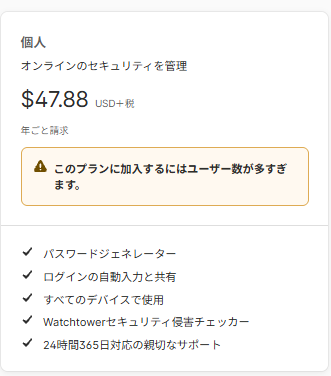
1Password Families lets up to five people hold accounts under one plan and share logins safely through shared vaults. The Individual plan is built for one person at $2.99/month (billed annually, ~¥450); that $2.99 is a new-customer first-year promo, with the standard rate at $3.99/month. Families covers five members for $4.49/month (billed annually, a first-year promo; the standard rate is $5.99/month).1 Beyond five people, extra members can be invited at an added cost, so check the official pricing or support pages for the current per-member rate. Prices are canonical in USD; the yen figure is an approximation that moves with exchange rates.
The core idea behind 1Password is separating what you share from what you never share. Only items in a shared vault are visible to your family; each person's Private vault stays invisible to everyone else — even the family organizer.
Before you start, confirm these prerequisites:
- Plan: an active Families subscription (the Individual plan can't distribute shared vaults to family)
- Family organizer: one admin who manages invites, billing, and account recovery
- Each member's email: the address the invite is sent to (you can create a new address for a child)
- Each member's Secret Key and Emergency Kit: issued per account; store them separately from the master password
The family organizer role carries real weight: this person invites and confirms members, controls billing, and is the only one who can recover a locked-out family account. Pick someone reliable — often the most tech-comfortable adult in the household — and write down who holds the role. In Japan, alongside the monthly subscription you may also see multi-year boxed licenses sold through resellers. Those are a purchasing route rather than a different product, and prices move with sales and exchange rates, so compare them against the official subscription before buying.
If you're weighing the switch from Individual, we break down the break-even in our Individual vs Families comparison. Deciding by headcount and usage first saves you from backtracking later.
How to Invite Family Members (Step-by-Step Checklist)
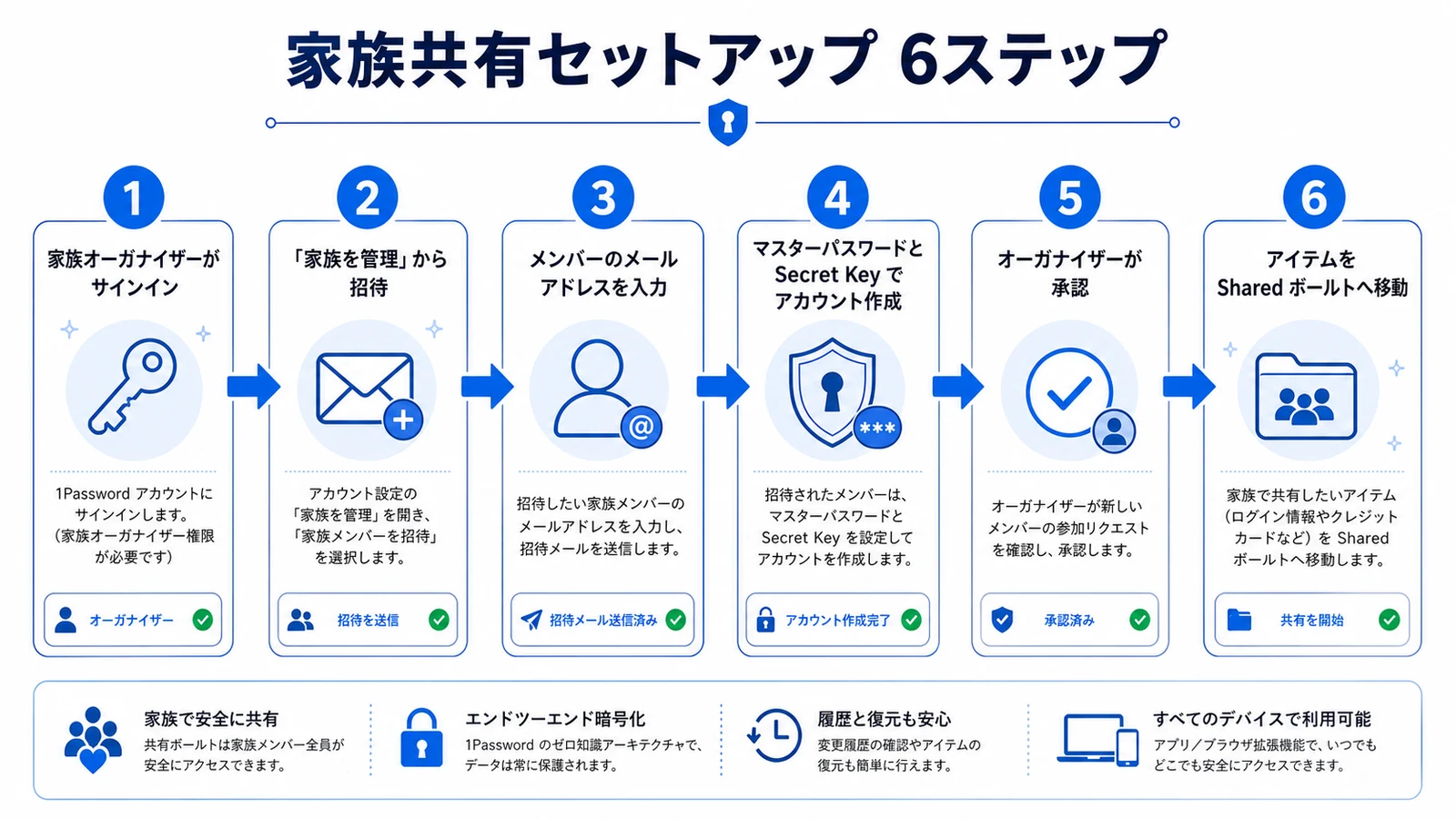
Inviting family is straightforward: the organizer sends an invite from the admin console, and each member creates an account from the link. Here's the exact order.2
- Sign in as the family organizer and open your account management page on 1Password.com
- Under Manage Family in the sidebar, choose Invite family members
- Enter the email address of the person you want to invite and send the invitation
- The recipient opens the emailed link and creates their account with their own master password and Secret Key
- The organizer confirms the new member (this anti-impersonation step is required)
- Move the items you want to share into the Shared vault
Invitations expire, so ask family to open them promptly. If one lapses, just resend it with the same steps.
Because 1Password syncs the same shared vaults across browser, desktop, and mobile, family members can start using them on every device as soon as they join.
For children, create a dedicated email address and invite them like any other member. The organizer still confirms them and can recover the account, which keeps young users from being permanently locked out. For an elderly parent who may struggle with setup, the organizer can walk them through account creation. Keep the emergency details for their most critical logins in a purpose-specific shared vault that only the two of you can see. Set a reminder to review family membership every few months — people change devices and email addresses, and stale invites are easy to leave hanging.
Designing Shared Vaults — Control Who Sees What
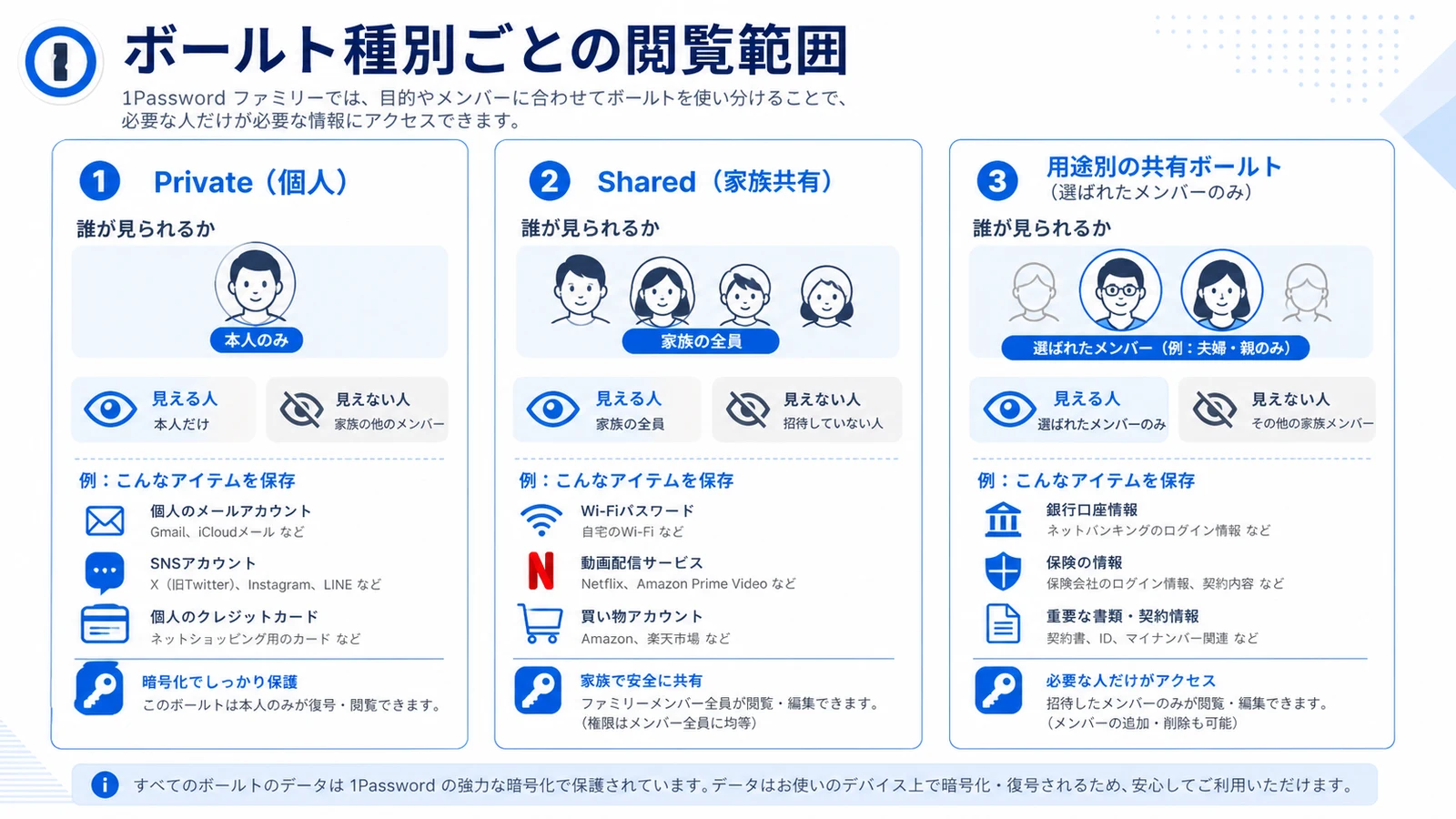
The most important part of family sharing is deciding, vault by vault, who can see what. It helps to think in three vault types.
Three Vault Types Set the Boundaries
| Vault type | Who can see it | What goes in |
|---|---|---|
| Private | Only you | Your work-only accounts, personal notes |
| Shared | All family members | Wi-Fi, streaming, home security, shared shopping accounts |
| Purpose-specific shared vault | Only selected members | Bank logins for the couple, a parent's end-of-life info |
The default Shared vault is visible to everyone in the family. When you want to limit access — "banking is just for the two of us," "my parents' info is only for me and them" — create a new shared vault and pick its members individually. That is the heart of a clean, no-gaps-no-overlaps family setup.
Passkeys (FIDO2/WebAuthn) can live in a shared vault too, so the whole family can use them. For how passkeys are stored and synced, see our 1Password passkeys guide.3
Writing down a family "sharing rulebook" removes guesswork in an emergency. One user shared how they codified theirs:
"Where are the passwords? Which email was this registered with? If I were suddenly hospitalized, would my family know?" Logins are household infrastructure, so we wrote up our family 1Password sharing rules. (Translated from Japanese)
Designing your vaults around "what happens if I'm suddenly unavailable" doubles as digital estate planning. The line between what to share and what only you should hold gets drawn naturally.
Sharing One Item Temporarily
When you need to hand off a single login to someone outside the family, or just once, don't spin up a whole vault — use an item sharing link instead. 1Password can turn an individual login or secure note into a link with an expiration and a restriction on who can open it. The recipient doesn't even need a 1Password account, so it's ideal for passing Wi-Fi details to relatives visiting for the weekend. Families can also invite a limited number of guests for narrow, ongoing access to specific shared vaults without giving them full family membership. The rule of thumb: recurring sharing goes in a shared vault, one-offs go through an item sharing link, and outside collaborators become guests.
Troubleshooting Cheat Sheet
Here are the snags families hit most often, and how to clear them.
| Symptom | Cause | Fix |
|---|---|---|
| Shared item isn't visible to family | It's still in a Private vault | Move it to the Shared or a purpose-specific shared vault |
| Invite link won't open / expired | The invitation lapsed | The organizer resends the invite with the same steps |
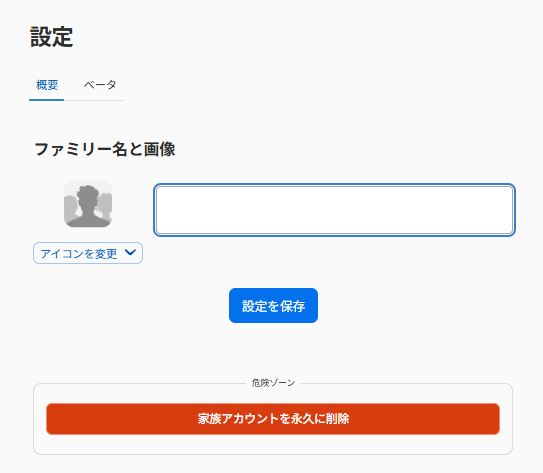
| Can't switch Families back to Individual | Plan changes may not complete in-app | Contact 1Password support to change or downgrade the plan |
| A member forgot their master password | They can't reset it themselves | The family organizer recovers the account (see below) |
| Company-provided Families suddenly stops | The employer's Business plan ended | Start your own Families subscription |
Two more things trip people up: forgetting that the organizer must confirm each member before they're fully active, and assuming a child's or parent's account can self-recover — it can't, which is exactly why the organizer role matters.
Plan switching that doesn't finish in-app is a common one. A user ran into exactly this when trying to move from Families to Individual:
Mistook the screen for deleting a 1Password group — I can't change from the Families plan to an individual plan even though I'm down to one person. Contacting support. (Translated from Japanese)
In cases like this, support can sort it out, so reach out before cancelling anything in a panic. Because plan changes touch billing, don't delete an account on your own judgment.
Verifying Your Setup and Rolling Back (Recovery)
Verify the Shared Setup
To confirm everything worked, check whether shared-vault items appear in each member's app. Look past the vault name in the list and confirm the specific items you moved actually show up inside that vault; if one is missing, it's almost always still sitting in a Private vault. From Manage Family, the organizer sees every member's status (invited/joined) and permissions at a glance.
Recovery and Undo
If a family member forgets their master password, the family organizer can run account recovery to restore access — a safety net you don't get on a solo Individual plan. After recovery, the member sets a new master password. Guests and members alike keep their own Secret Key, so recovery re-establishes access without ever exposing anyone's private items to the organizer.
Compromise Checks and Who It Fits
To check whether any shared credential has been exposed, the whole family can use Watchtower to monitor compromised passwords; items inside shared vaults are included in the scan.
Who it fits — and who it doesn't. If your household routinely shares Wi-Fi, streaming, and banking logins, or you want to plan for a parent's digital estate, 1Password Families is a strong fit. If you only ever use it solo, the Individual plan is enough; and if you're well past five people in a work setting, a business plan makes permissions easier to manage.
If you're new to it, the 14-day free trial lets you test how shared vaults behave before committing. During the trial you can invite one family member and move a couple of test logins into a shared vault. Confirm on their device that sharing behaves the way you expect before you commit to a full year. On privacy, family members can't see inside your Private vault, so you stay in full control of what is shared and what isn't. Bitwarden and Dashlane offer family sharing too, but 1Password keeps your Private vault invisible even to the family organizer, so the line between shared and private stays unambiguous.
Summary
With 1Password Families, once you nail the split between "vaults you share" and "vaults you don't," the first invite takes about ten minutes. The four essentials: (1) pick a family organizer on a Families plan, (2) invite and confirm members, (3) create purpose-specific shared vaults to scope who sees what, and (4) prepare for emergencies with recovery and an offline Emergency Kit. Start with the free trial to watch shared vaults in action, then settle on a sharing rulebook that fits your family.
Information current as of 2026-07-10. Please check the official sites for the latest updates.
This article contains affiliate links.
Footnotes
-
1Password pricing (official): https://1password.com/pricing ↩
-
1Password Support (manage family, shared vaults, recovery): https://support.1password.com/ ↩
-
1Password passkeys (official): https://1password.com/passkeys ↩
Frequently asked questions
Related articles
1Password Individual vs Families 2026 — Break-Even and SourceNext

1Password Passkeys 2026: FIDO2/WebAuthn Storage, Sync, and Ops