1Password Watchtower: Monitor Compromised Passwords
1Password Watchtower flags compromised and reused passwords via Have I Been Pwned. See how the private check works and what to do on a breach alert.
This article contains affiliate links (advertising).
Password reuse and forgotten data breaches quietly become the entry point for account takeover, and most people never notice until an account is already lost. 1Password Watchtower closes that blind spot: it cross-checks your saved credentials against Have I Been Pwned data and flags compromised or weak passwords, reused logins, and old breaches automatically. This guide walks through exactly what Watchtower watches, how the monitoring works under the hood (k-anonymity), the precise steps to take when an alert appears, and how it differs from dark web monitoring, so you can turn warnings into a calm, repeatable routine instead of a panic.
What 1Password Watchtower Monitors
1Password Watchtower runs an automatic "health check" on the login items already stored in your vault. It costs nothing extra and ships with every paid plan, from personal Individual to Business, so there is no upgrade or add-on gating it. Compromised passwords are only one of the risks it surfaces; the feature is closer to a full posture dashboard than a single leak checker.
| Risk category | What it detects |
|---|---|
| Compromised Passwords | Passwords confirmed leaked in past data breaches |
| Weak Passwords | Short or simple passwords that are easy to guess |
| Reused Passwords | Passwords used across multiple sites |
| Compromised Websites | Breach events at sites where you saved an account |
| Missing Two-Factor Auth | Sites that support 2FA where you have not enabled it |
| Unsecured Websites | Sites still saving logins over plain HTTP |
| Expiring Items | Passwords or cards nearing their expiry |
The highest priority among these is Compromised Passwords, because an attacker may already hold the plaintext or a crackable hash of that exact credential. Reused passwords come next, since a single leak can cascade into every other site that shares the same password. You open the Watchtower dashboard from the app sidebar, where each category shows a count and the full list of affected accounts. Rather than treating every badge as equally urgent, read the dashboard as a triage board: the top rows are where an attacker would strike first, and the lower rows (expiring items, missing 2FA) are hygiene you can schedule for later.
How Compromised-Password Monitoring Works
A common and reasonable worry is that your password is uploaded to 1Password's servers so it can be compared against a leak list. In reality the design is built for privacy first, and once you understand it, the alerts become far easier to interpret and trust.
The Have I Been Pwned Connection
The compromised-password check uses the Pwned Passwords database from Have I Been Pwned (HIBP), the breach-data project run by security researcher Troy Hunt. It aggregates hundreds of millions of unique passwords exposed in breaches worldwide into a single searchable corpus (with even more exposures counted by total occurrences), and 1Password checks whether any of your saved passwords appear there. This is the same industry-standard source used by browser-based password managers and other tools, so a match is not a 1Password-specific verdict; it means the password has genuinely been seen in real-world leaks and should be considered burned.
K-Anonymity Keeps the Password Itself Private
During the check, neither your password nor your account password ever leaves your device in full. 1Password computes a SHA-1 hash of the password and sends only its first five characters to HIBP. The server returns every hash in the database that shares those five characters, and the actual comparison runs locally on your device against that returned range. This method, known as k-anonymity, means the server never learns the full hash, never sees the password, and cannot even determine which specific password you were checking. A naive design that uploaded the whole password, or even the whole hash, would leak exactly the secret you are trying to protect; k-anonymity avoids that by design. The mechanics are documented in the official 1Password Watchtower docs, and the same approach underpins Watchtower's ongoing rechecks as the breach database grows.
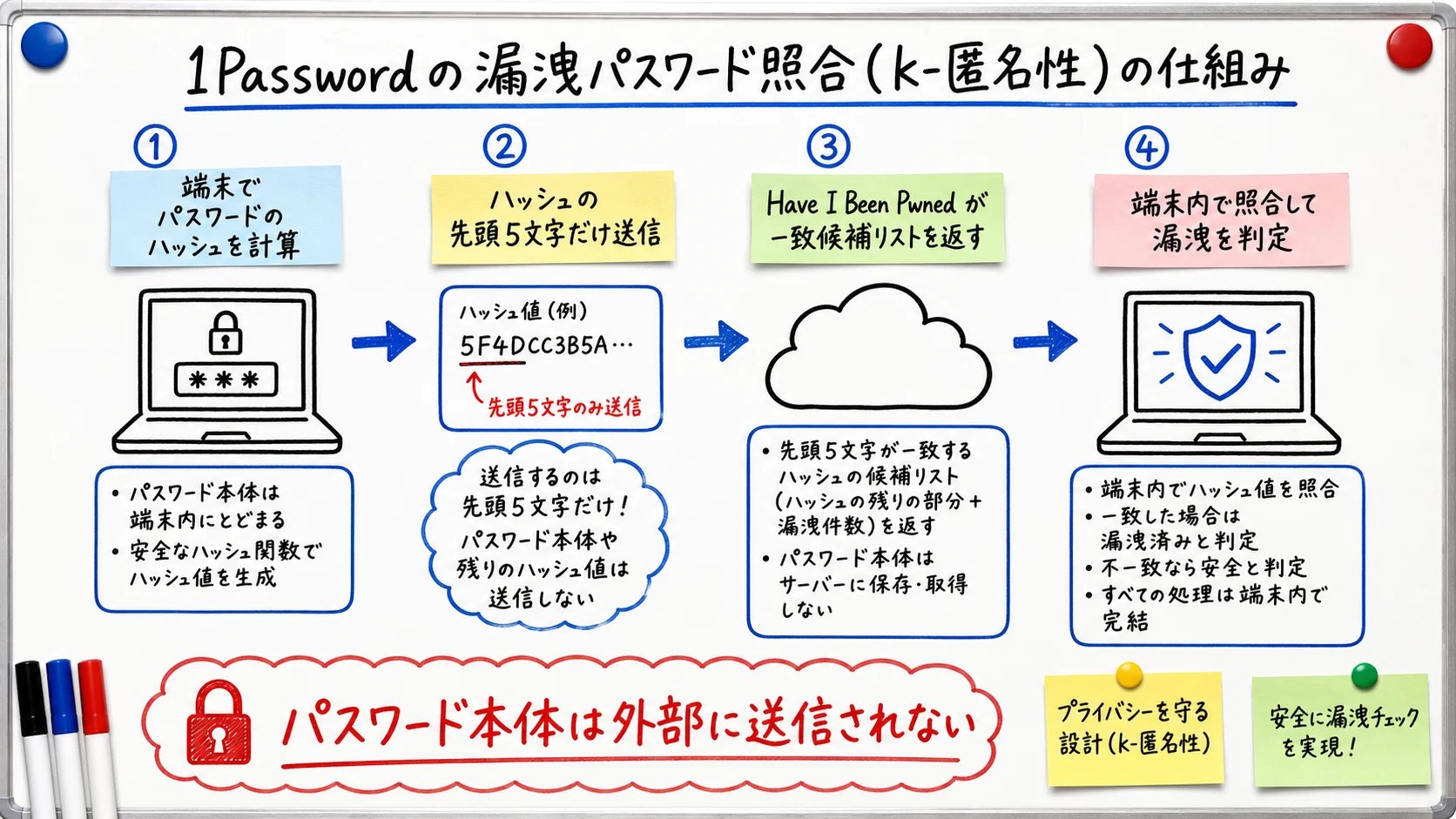
For context, the point being made is that 1Password's breach check relies on HIBP's Pwned Passwords and only ever uses part of a hash, never the raw password.
What to Do When an Alert Appears
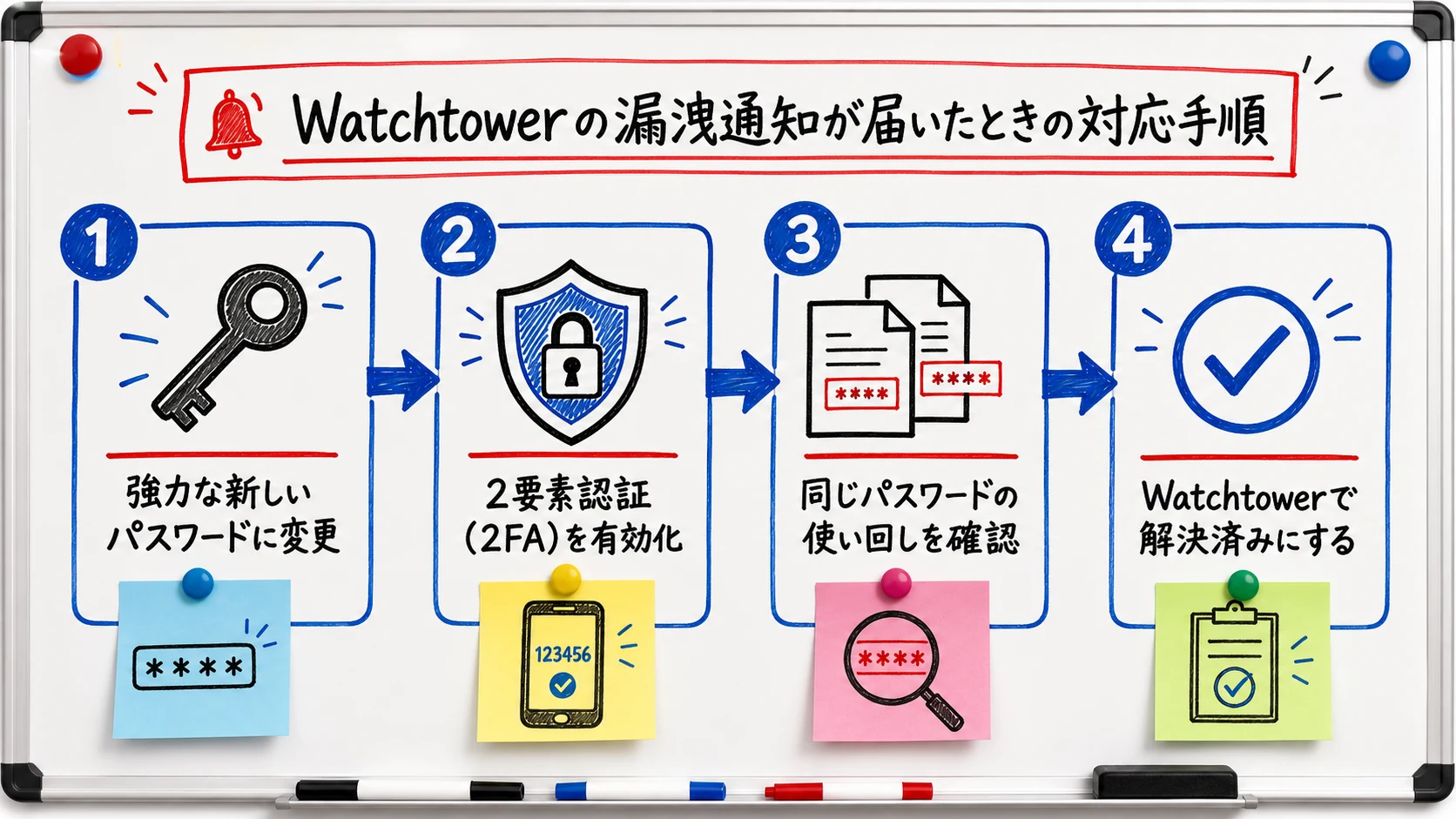
When Watchtower detects a compromised password or a data breach, a warning shows up in the app and the browser extension. The instinct is to fix everything at once, but a calmer, ordered pass gets the risky items handled first. Work through them in this sequence.
- Open the flagged account and change it to a long, unique password using the built-in generator, then save the new value so autofill stays in sync.
- After the change, enable two-factor authentication (2FA / MFA) on that site so a future leak of the password alone is not enough to log in.
- Check the Reused category to see whether the same password protected other accounts, and rotate those too, because attackers routinely replay one leaked password across many services.
- Mark the item as Resolved once you have handled it, which clears the badge and keeps the dashboard honest about what still needs attention.
- For a more durable fix, move supported sites to passkeys, which remove the shared secret entirely.
Passkeys never issue a password at all, so they cut leak risk at the root rather than treating each incident after the fact. The concrete steps for saving, syncing, and operating them are covered in our 1Password passkeys guide. When you are unsure where to start on a long list, clear Compromised first, then Reused, then Weak, so your limited time flows to the credentials an attacker could exploit today rather than months from now.
For context, security vendor Malwarebytes highlights why it matters that a password manager tells you specifically which breach exposed which data.
Three Common Misconceptions
Watchtower is simple under the hood, but misreading its alerts leads either to needless anxiety or, worse, to shrugging off warnings that deserve action. Here are the three misunderstandings worth clearing up before they change how you respond.
- Myth: A Compromised Website warning means my password definitely leaked. In reality it flags a breach on the site's side, which does not always mean your own credentials were among the exposed records. Changing the password anyway is the safe move, because you rarely know precisely what a breach exposed.
- Myth: Watchtower sends my password to 1Password to compare it. In reality the k-anonymity method above never transmits the password itself, only a five-character hash prefix, so the check cannot become a new leak vector.
- Myth: Dark web monitoring is a completely separate, advanced feature. In reality 1Password's compromised-password and data-breach alerts both rest on matching against leak databases like HIBP, and what marketing calls dark web monitoring is an extension of that same foundation rather than a wholly different engine.
These detections are only the entry point; the value is in what happens next. Browser-built-in managers and standalone breach scanners tend to stop at telling you a password is exposed, whereas 1Password lets you act on the same screen—regenerate a strong password, turn on 2FA, and migrate to a passkey—without switching apps or copying secrets between tools. That end-to-end "detect and remediate in one place" flow, not the detection itself, is 1Password's practical edge. Rather than relying on Watchtower alone, the layered-defense mindset that combines passkeys and phishing resistance is detailed in our 1Password phishing defense guide.
Who It Fits, Plus Teams and Insights
Watchtower's breach monitoring pays off most for people who match one of these profiles:
- They hold accounts across many services and worry about reuse or stale passwords built up over years.
- They have received at least one data-breach notification email in the past and want a systematic way to respond, not a one-off scramble.
- They manage a team or family and want to raise everyone's password hygiene at once rather than chasing individuals.
If you only store a handful of accounts and have already moved everything to passkeys, the benefit is admittedly limited. Even then, Watchtower is free with the plan and runs quietly in the background, so there is no real downside to leaving it on and letting it catch the next leak you would otherwise miss. And because breach databases keep expanding, an account that looks low-risk today can still be flagged tomorrow by a check that re-runs on its own, which is exactly the kind of silent, no-effort safety net worth keeping switched on for the long term.
For team or company use, the 1Password Business plan adds admin-facing Insights, which shows an aggregated view of compromised, vulnerable, and reused passwords across all members without exposing anyone's actual credentials. On Teams, that reporting is more limited—admins get only a subset of dashboard reports (such as domain breach reports) or trial access—so continuous org-wide visibility is really a Business feature. If per-user Watchtower is a personal checkup, 1Password Insights is the organization-wide checkup, letting admins see where risk concentrates and prompt the highest-risk members to remediate first. That aggregate view is also where the distinction from consumer-style dark web monitoring matters most: for a business, the goal is not just an individual alert but a measurable, shrinking risk surface over time.
Turning Watchtower On and Keeping It Effective
Watchtower is on by default in most 1Password apps, but it is worth confirming and tuning so it keeps earning its place. In the desktop and mobile apps, the vulnerable-password and breach checks live under the privacy or Watchtower settings, where you can confirm that options like "Check for vulnerable passwords" and breach alerts are enabled; the browser extension exposes the same controls under its own Watchtower settings. Exact labels shift slightly between versions, so if a toggle is not where you expect, search the settings for "Watchtower" or "vulnerable."
The feature is only as useful as the data it runs against, and that data keeps growing. Have I Been Pwned adds new breach corpora over time, so a password that looked clean last year can surface later; leaving the checks on means Watchtower re-evaluates your vault as the database expands rather than freezing at the moment you first ran it. Resist the temptation to permanently silence the Compromised and Reused categories just to make the dashboard look tidy, because those are exactly the signals that predict account takeover.
A few habits keep the whole system honest. Give your 1Password account itself a strong, unique account password and set up your recovery options, since Watchtower protects the items inside the vault, not the vault's own front door. Schedule a short monthly pass to clear whatever the dashboard has surfaced, rather than waiting for one overwhelming cleanup. And when a site offers passkeys or hardware-key 2FA, take it, so that over time more of your logins fall into categories Watchtower rarely needs to warn you about at all.
Summary
1Password Watchtower cross-checks compromised, weak, and reused passwords against Have I Been Pwned and surfaces account risk while keeping your data private through k-anonymity. What matters is less the detection itself and more building the habit of "change, enable 2FA, check reuse, mark resolved" every time an alert lands, so a warning becomes a two-minute routine instead of a crisis. If you are still weighing a move from a browser's built-in password tool to a dedicated manager, comparing the monitoring gap in our 1Password vs Google Password Manager comparison will help you judge the level of monitoring you actually need.
Information current as of 2026-07-08. Please check the official sites for the latest updates.
This article contains affiliate links.
Frequently asked questions
Related articles
1Password AI Phishing Defense 2026 — Passkeys + Watchtower

1Password Passkeys 2026: FIDO2/WebAuthn Storage, Sync, and Ops