
Move Chrome Passwords to 1Password: A 2026 Migration Guide
Move Chrome (Google Password Manager) logins to 1Password: export, import, CSV cleanup, and re-adding the cards, addresses, and passkeys Chrome skips.
This article contains affiliate links (advertising).
Are you letting Chrome hold all your passwords? Here's the short version: if you use multiple devices or browsers, share logins with family or a team, or want passkeys and breach monitoring in one place, it's worth moving from Google Password Manager (saved in Chrome) to 1Password. This guide walks the official flow — CSV export, import, cleaning up the plaintext file, and re-adding the cards, addresses, and passkeys Chrome won't carry over — so you can graduate from browser-stored passwords safely.
Why Graduate From Chrome (Google Password Manager)?
Chrome's built-in password storage wins on being free and instantly available, but it's still a browser feature. It leans on your Google account session and device lock, so autofill barely reaches Safari-only apps, other browsers, or desktop app logins. The moment you step outside the Chrome ecosystem, it gets clunky.
1Password, by contrast, is built on a two-layer Secret Key plus master password (zero-knowledge) design and uses the same vault across macOS, Windows, Linux, iOS, Android, and browser extensions. It also adds hygiene tools the browser lacks, like 1Password Watchtower, which flags reused, weak, and breached credentials.
The practical difference shows up the day your setup changes. Switch from an Android phone to an iPhone, add a work laptop that standardizes on Edge, or start using a native desktop app that never touches a browser, and Chrome's storage simply isn't there to help. A dedicated manager treats the browser as one of many surfaces rather than the home base, so your logins follow you instead of staying trapped in one vendor's ecosystem. That portability is the real reason most people outgrow browser-stored passwords, well before any single security incident forces the issue.
Here are the key differences at a glance.
| Criteria | Google Password Manager | 1Password |
|---|---|---|
| Platforms | Mostly Chrome / Android | Windows / Mac / Linux / iOS / Android / major browsers |
| Sharing | Limited sharing inside Google | Vault- and item-level sharing with permissions |
| Passkeys | Tied to browser / OS | Managed centrally in the vault (support expanding) |
| Breach / reuse monitoring | Basic checks only | Watchtower audits weak, breached, reused items |
| Autofill scope | Browser-centric | Browser + desktop app + mobile |
| Price | Free | Paid (see below; 14-day free trial) |
On price, Google Password Manager is free, while 1Password's Individual plan starts at $2.99/mo (~¥450) billed annually as of July 2026, with a 14-day free trial1. If you're unsure whether Individual or Families works out cheaper, we break down the Individual vs Families break-even so you can settle the plan before you commit.
The 4-Step Chrome-to-1Password Migration (Official Flow)
Migration sounds heavy, but the official path is a four-part sequence: export, import, disable the built-in manager, then delete your Chrome passwords2. Because your Chrome passwords stay put during the move, there's effectively no downtime — you can run both in parallel and verify everything opens in 1Password first. If something looks off, you can fall back to Chrome, which is what makes this approach low-risk.
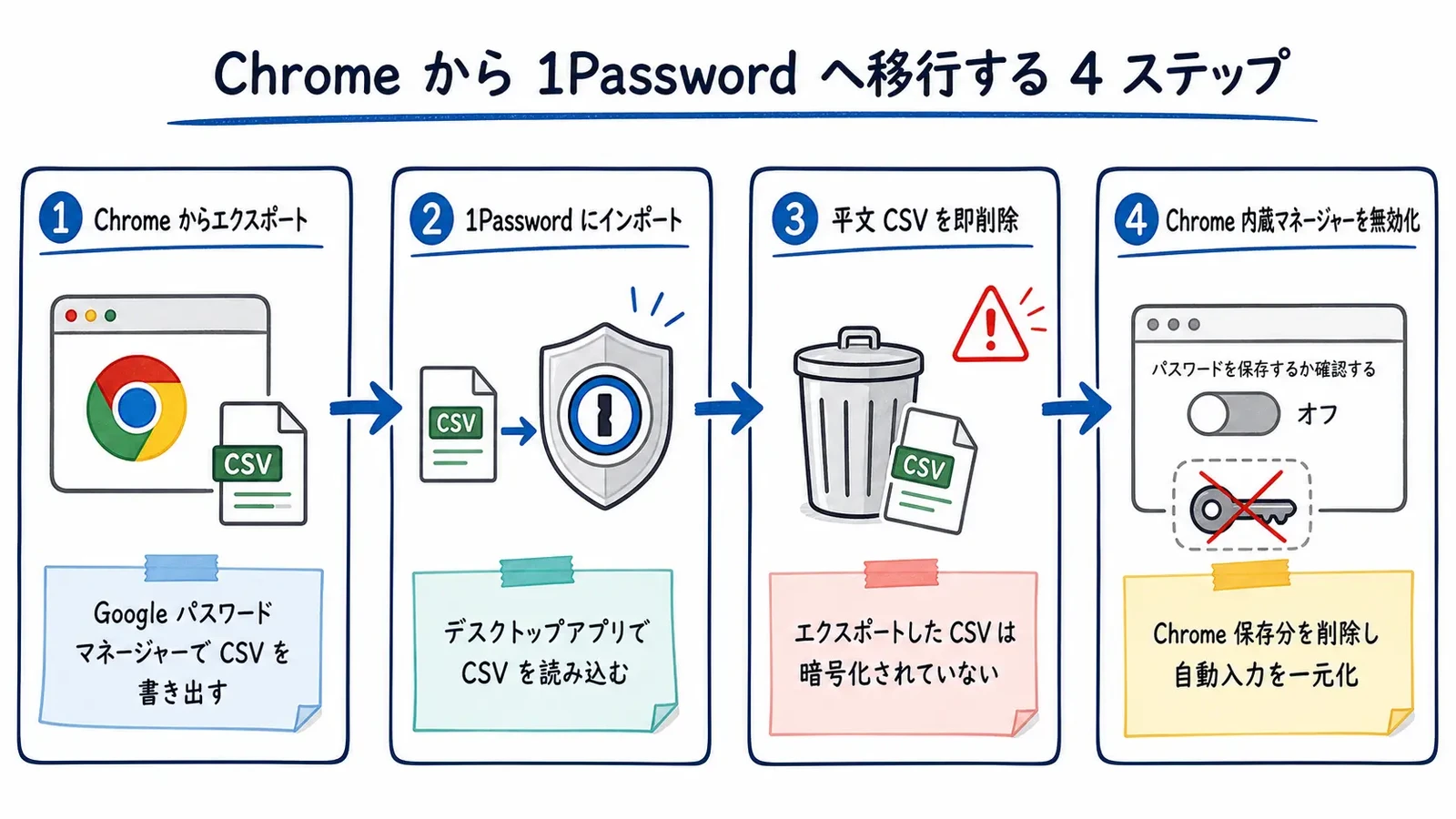
- Export a CSV from Chrome. Pause any backup software first, then open the Chrome menu and go to Passwords and Autofill > Google Password Manager. In Settings, choose Download file under Export passwords, enter your computer login password, and save
Chrome Passwords.csv(you can reach the same screen viachrome://password-manager/settings)2. - Import into 1Password. Open 1Password, choose File > Import from the menu bar, pick Chrome, select your CSV, choose the account to import into, and run it. You can also sign in at 1Password.com and use Import data2.
- Delete the plaintext CSV and re-enable backups. Once the import finishes, delete the unencrypted CSV immediately and turn the backup software from step 1 back on2.
- Disable the built-in manager and delete Chrome passwords. We cover these two in detail later. At this point, the core data move is done.
Before you go further, spot-check the result. Open a handful of high-value logins in 1Password — your email, your bank, your primary work account — and confirm the usernames and passwords came across intact. Because Chrome still holds the originals at this stage, a bad import costs you nothing: you re-export and try again. Only once you're satisfied that everything opens correctly do you move on to disabling Chrome's manager, which is the step that actually commits you to the switch.
The official 1Password account regularly highlights bulk import from other browsers and password managers.
For context, the 1Password team (@1Password) has been promoting a bulk-import flow for bringing saved passwords into 1Password.
What Doesn't Migrate (Cards, Addresses, Passkeys) — and How to Fill the Gap
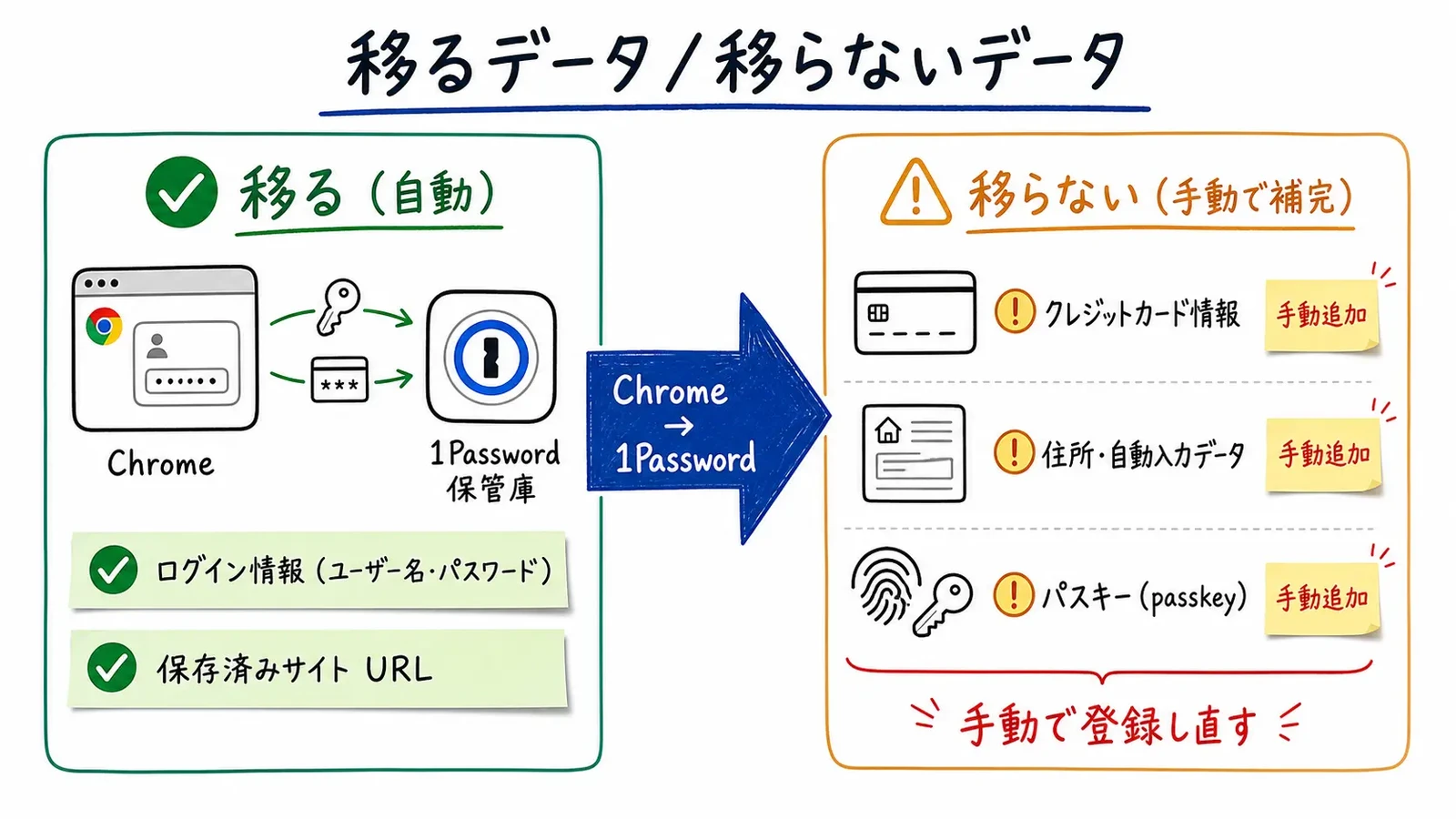
This is the most overlooked part of a Chrome migration. The official help page is explicit: only passwords are imported — credit cards, addresses, and passkeys are not2. In other words, importing the CSV alone leaves your payment details, addresses, and passkeys out of 1Password.
Re-create Credit Cards and Addresses by Hand
Add cards and addresses back as Credit Card and Identity items in 1Password. Open Chrome's Payment methods and Addresses and more settings, then copy the details across into 1Password so nothing slips through. Doing this while the count is small means every future autofill runs through 1Password.
It's easy to skip this because cards and addresses feel less critical than passwords, but that's exactly how people end up half-migrated for months — passwords in 1Password, checkout autofill still coming from Chrome. Keeping payment and identity data split across two managers defeats the point of consolidating, and it's the main reason autofill feels inconsistent after a rushed move. Ten minutes of manual entry now saves you the confusion of not knowing which tool is filling which field later.
Re-register Passkeys per Service
Passkeys are bound to the issuing service and device, so a CSV can't move them. The reliable path is to open each service's security settings and create a fresh passkey in 1Password. For how passkeys are stored, synced, and operated, see our 1Password passkeys guide.
In practice the re-registration loop is short: sign in to the service, open its security or account settings, remove the old passkey if you want a clean slate, then add a new one and save it to 1Password when prompted. You don't have to do all of them in one sitting — tackle the accounts you log into most often first, and let the long tail happen naturally as you visit each site. Because passwords still work as a fallback on nearly every service, there's no window where you're locked out while the passkeys catch up.
That said, 1Password is expanding passkey import from other apps on newer operating systems.
The 1Password team (@1Password) notes that on iOS/iPadOS 26 and later you can import passkeys from another app.
That should lower the passkey-migration burden over time, but it won't necessarily cover passkeys saved in the Chrome browser — so for now, plan on re-registering per service as your default.
Disabling Chrome's Built-in Manager and Unifying Autofill
Moving the data isn't the finish line. Chrome will keep saving and autofilling passwords, clashing with 1Password. To take the migration all the way to "graduated," you need to switch the built-in manager off and route autofill through 1Password only.
First, install the 1Password browser extension, then turn off Chrome's built-in password manager (offer-to-save and autofill)2. Next, delete the saved passwords still in Chrome. Turning the manager off isn't enough — Chrome keeps autofilling until you delete them, and only then does autofill hand over to 1Password. Note that deleting Chrome passwords is irreversible and also removes any passkeys saved in Chrome, so confirm everything is in 1Password before you do it2.
The reason this matters is that two active managers fight over the same login fields. When both Chrome and the 1Password extension try to fill a form, you get duplicate prompts, mismatched entries, and the nagging question of which one holds the current password. Turning Chrome's manager off and clearing its store removes that ambiguity so there's a single source of truth. Once that's settled, the remaining snags are usually cosmetic — the quick-reference table below covers the ones that show up most often.
Here's a quick-reference table for the snags that tend to appear right after migration.
| Symptom | Common cause | Fix |
|---|---|---|
| Two extensions pop up at once | Chrome built-in and 1Password both active | Turn off the built-in manager; update the extension |
| Duplicate logins appear | CSV imported more than once | Clean up duplicates; import only once going forward |
| Autofill still comes from Chrome | Passwords remain in Chrome | Delete Chrome's saved passwords |
| Some sites don't detect fields | Extension version mismatch | Update the browser extension and desktop app to match |
If you end up with a pile of duplicate items, use Watchtower to surface reuse and duplicates while you tidy up, so cleanup doubles as a credential audit.
Who Should Switch — and Who Shouldn't Yet
Not everyone needs to move right now. Decide based on which side you land on.
You Should Move to 1Password If
- Your work and personal life span different operating systems and browsers (Windows and iPhone, Chrome and Safari)
- You want to securely share some logins with family or a team
- You want passkeys, TOTP, and breach monitoring managed in one place
You Can Wait If
- Almost everything you do stays inside Chrome and Android, with no sharing needs
- You use a single device and want to stay on the free option for now
If that second group is you, there's no need to force a migration — stay put and move later when your environment grows. Google Password Manager keeps improving, and for a single-device, single-browser user it's a perfectly reasonable default. The trigger to switch isn't "browser managers are bad," it's a concrete need they can't meet: a second operating system, a shared login, or credentials you'd rather audit centrally.
If you do decide to switch, start the 14-day free trial to feel out autofill in practice before going all in; running it alongside Chrome for a while keeps rollback on the table, so a trial that doesn't fit costs you nothing. 1Password also ships a localized UI, so the settings screens are easy to navigate no matter which language you work in.
If you're moving off not just Chrome but a paid manager like LastPass or Bitwarden, going through 1Password's switch offer covers part of your prior subscription cost. We cover the tool-specific steps in our LastPass to 1Password guide and Bitwarden to 1Password guide, so check those if you're juggling multiple tools.
Conclusion — Separate "Data Migration" From "Chrome Cleanup"
Moving from Chrome to 1Password imports the passwords themselves in one pass through the official importer. What matters is doing three things together: (1) delete the plaintext CSV on the spot, (2) re-add the cards, addresses, and passkeys that don't transfer, and (3) disable Chrome's built-in manager and delete its saved passwords so autofill runs through 1Password only. You've only truly graduated once all three are done.
Start by importing passwords during the 14-day free trial, spend a few days re-adding cards, addresses, and passkeys, and once parallel running looks clean, clean up the Chrome side. Follow that order and you'll leave browser-stored passwords behind safely. Treat the migration as a two-week project rather than a single afternoon, keep Chrome as your safety net until the switch feels solid, and you'll land on a single, cross-platform vault without ever locking yourself out along the way.
Information current as of 2026-07-05. Please check the official site (https://support.1password.com/import-chrome/) for the latest updates.
This article contains affiliate links.
Footnotes
-
1Password pricing (Individual, Families, Business): https://1password.com/jp/pricing ↩
-
1Password official help, "Move your passwords from Chrome to 1Password": https://support.1password.com/import-chrome/ ↩ ↩2 ↩3 ↩4 ↩5 ↩6 ↩7
Frequently asked questions
Related articles

How to Migrate from LastPass to 1Password in 2026 — Export, Import, and Passkey Caveats

How to Migrate from Bitwarden to 1Password in 2026 — JSON Export, Passkey & TOTP Caveats

