Import iCloud Keychain into 1Password: 2026 How-To
Move passwords from iCloud Keychain (Apple Passwords) to 1Password: CSV export on a Mac, import, plaintext cleanup, and handling passkeys and cards.
This article contains affiliate links (advertising).
Are you letting iCloud Keychain (Apple's Passwords app) hold everything on your Mac and iPhone? Here's the short version: if you span Windows or Android, share logins with family or a team, or want passkeys and breach monitoring in one place, it's worth moving from iCloud Keychain to 1Password. This guide walks the safe order — CSV export on a Mac, import, cleaning up the plaintext file, and re-adding the passkeys and cards Apple won't carry over.
Why Move From iCloud Keychain to 1Password?
iCloud Keychain's strength is being free and effortless: if you use Apple devices, it autofills Safari and apps with zero setup. But it is an Apple-ecosystem feature at heart. The moment you cross into a Windows PC or an Android phone, share with a team beyond your family, or want to audit weak and reused passwords, it runs out of road.
1Password, by contrast, is built on a two-layer Secret Key plus master password (zero-knowledge) design and uses the same vault across macOS, Windows, Linux, iOS, Android, and browser extensions. It also adds hygiene tools the OS default lacks, like 1Password Watchtower, which flags weak, breached, and reused credentials.
The practical difference shows up the day your setup changes. Add a Windows work laptop, switch a family member to an Android phone, or start using a desktop app that never opens Safari, and iCloud Keychain simply isn't there to help. A dedicated manager treats the browser and the OS as two of many surfaces rather than the home base, so your logins follow you instead of staying pinned to one vendor. That portability is the real reason most people outgrow the built-in option, usually well before any single security incident forces the issue.
Here's the practical difference on one screen.
| Criteria | iCloud Keychain | 1Password |
|---|---|---|
| Platforms | Apple (Mac / iPhone / iPad) focused | Windows / Mac / Linux / iOS / Android / major browsers |
| Sharing | Family sharing group focused | Vault- and item-level permissioned sharing |
| Passkeys | Bound to Apple devices | Managed centrally in the 1Password vault (expanding) |
| Breach / reuse monitoring | Basic checks only | Watchtower audits weak, breached, reused items |
| What it stores | Logins mainly | Logins, cards, notes, SSH keys, passkeys, and more |
| Price | Free | Paid (see below; free trial available) |
On price, iCloud Keychain is free, while 1Password Individual starts at $2.99/mo billed annually (about ¥450/mo) as of July 2026, with a 14-day free trial1. If you're unsure whether individual or family is the better deal, our individual vs. family break-even breakdown lays it out.
Users who have made the switch report gains that go beyond just relocating their passwords.
"I fully moved my passwords from Google Password Manager and iCloud Keychain to 1Password. Being able to sort by category — flagging importance, like whether an item holds payment info — is genuinely handy." (Translated from Japanese)
Sorting by importance — whether an entry holds payment details — is one of the concrete wins of moving from an OS-default store to a dedicated tool.
How to Migrate From iCloud Keychain to 1Password
Migration sounds heavy, but the official flow is a staged sequence: export, import, clean up the plaintext file, then unify autofill2. Your Apple-side passwords stay put during the move, so there's effectively no downtime — you can run both in parallel and verify that items open in 1Password. If something goes wrong, you can fall back, which is the reassuring part of this approach.
Think of it as a copy, not a cutover. Nothing is deleted from iCloud Keychain until you deliberately turn it off at the end, so a spot-check of your most-used logins in 1Password is enough to prove the import worked before you commit. Budget a short window to run both side by side rather than flipping everything at once.
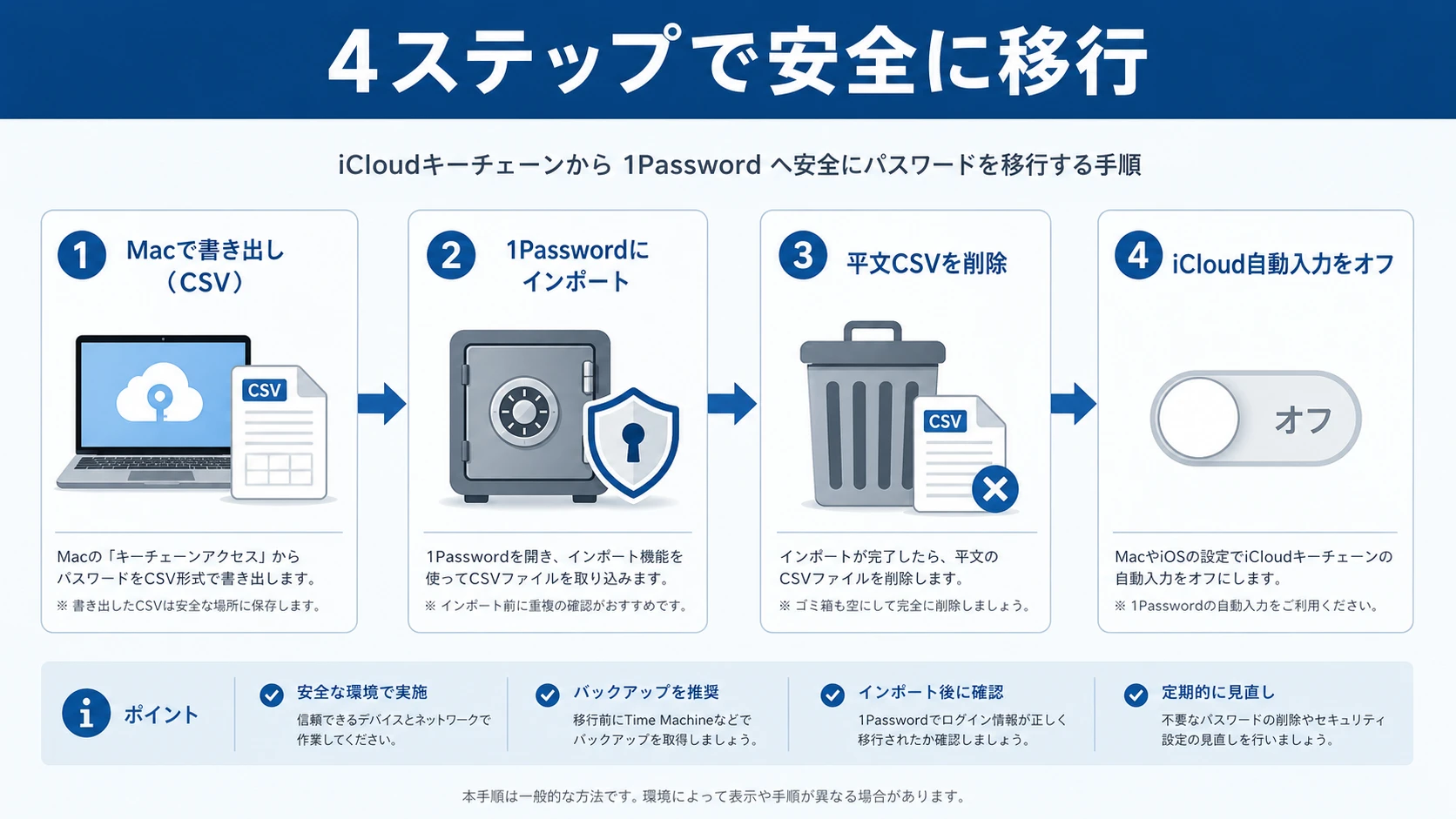
- Export a CSV on a Mac. Pause your backup software first, then open the Passwords app on your Mac (or System Settings > Passwords). From the menu bar, choose File > Export All Passwords and save the CSV (your Mac login password or Touch ID is required).
- Import into 1Password. Open the 1Password app, go to File > Import, choose Safari (iCloud passwords), point it at your CSV, pick the destination account, and run it. 1Password also offers a path to import iCloud passwords directly via Safari2.
- Delete the plaintext CSV and resume backups. Once the import finishes, delete the unencrypted CSV immediately and re-enable the backup software you paused in step 12.
- Unify autofill in 1Password. Turn off Apple-side autofill and switch to 1Password. We cover this finishing step in detail later.
One thing to watch: you can't cleanly export a CSV from an iPhone or iPad alone. The export lives in the Passwords app on the Mac, so having a Mac on hand is the reliable shortcut.
"I tried to move all my passwords to 1Password, but iCloud Keychain wouldn't just spit out a CSV — total dead end." (Translated from Japanese)
As above, getting stuck because an iPhone alone won't produce a CSV is a common snag. With no Mac nearby, borrow a family or work Mac temporarily, or use 1Password's on-device import where the OS supports it.
What Doesn't Migrate (Passkeys, Cards) and How to Backfill
This is the most overlooked part of an iCloud Keychain migration. The CSV mainly carries logins — usernames, passwords, and verification codes if you saved them — while passkeys and Safari-autofill credit cards do not come across. In other words, importing the CSV alone leaves passkeys and payment details outside 1Password.
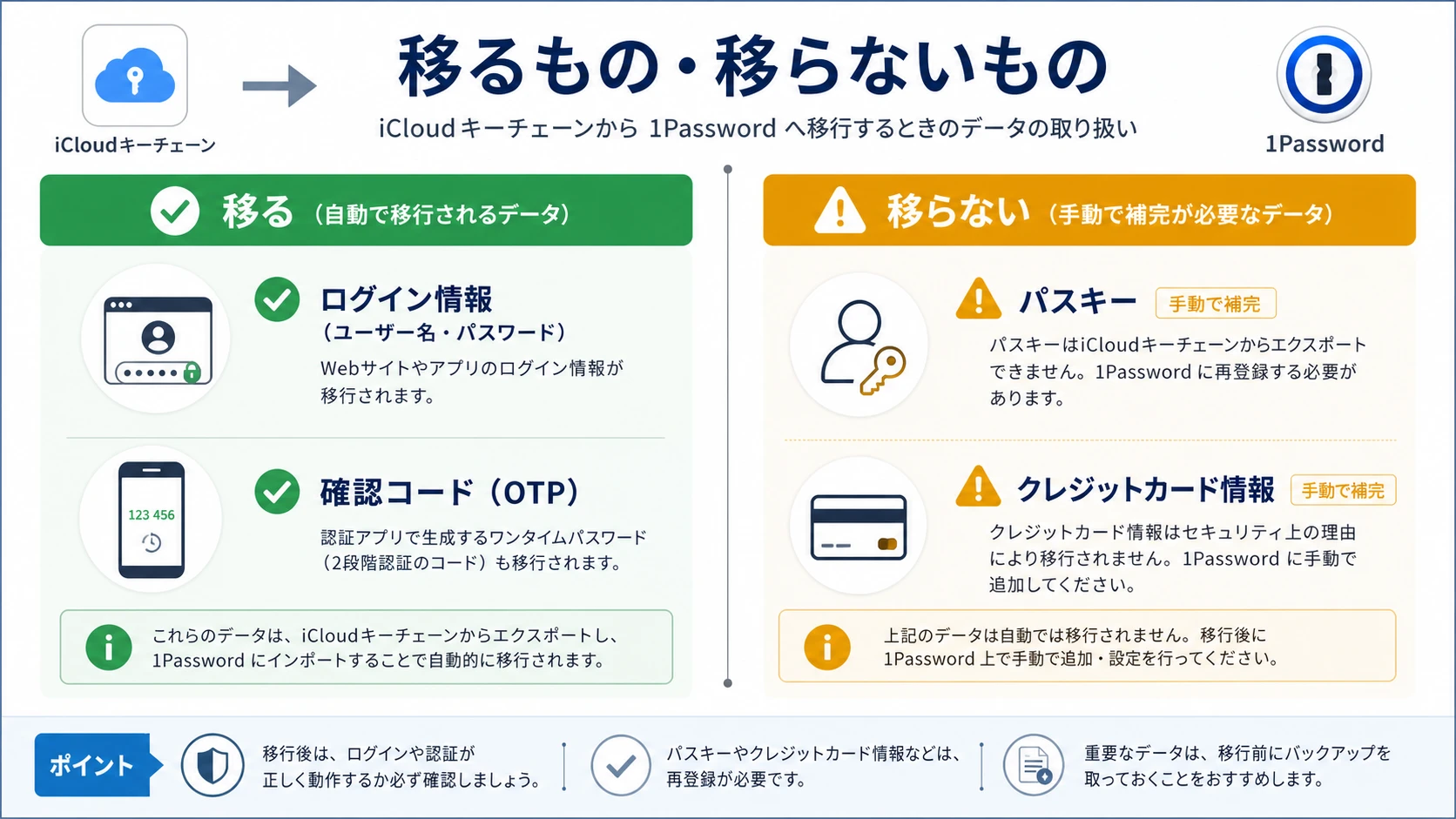
Passkeys tend to be the single biggest blocker in the current migration flow.
"Since work uses 1Password, I use it personally too — but if that changed, price would push me to migrate. The blocker is that you can't move passkeys right now." (Translated from Japanese)
As the note above points out, passkeys are bound to the issuing service and device, so they can't move via CSV. Open each service's security settings and create a fresh passkey in 1Password instead. For how passkeys are stored, synced, and operated, our 1Password passkeys guide goes deeper.
There's a small upside to re-registering: it forces a quick pass over which accounts actually use passkeys, letting you prune stale ones and standardize on 1Password as the store going forward. Credit cards work the same way — re-enter them as Credit Card items in 1Password so all later autofill routes through one place. Anything you kept as a free-form secure note (Wi-Fi keys, recovery codes, license keys) is worth reviewing during the move too, since it's easy to copy those into 1Password items while you have everything open in front of you.
Turn Off iCloud Keychain Autofill and Unify
Moving the data isn't enough on its own — Apple will keep trying to save and autofill passwords, colliding with 1Password. To finish the migration, stop iCloud-side autofill and route everything through 1Password.
First install the 1Password app and browser extension. Then, on iOS/iPadOS via Settings > General > AutoFill & Passwords, and on Mac via System Settings > Passwords or Safari settings, switch the autofill provider from iCloud to 1Password. Make the switch only after confirming everything saved into 1Password, so sign-ins don't stall. Here's a quick table of common post-migration snags and fixes.
| Symptom | Common cause | Fix |
|---|---|---|
| Autofill suggestions appear twice | Apple and 1Password autofill both active | Set the autofill provider to 1Password only |
| The same login imported twice | CSV imported multiple times | Clean up duplicates and import only once going forward |
| 1Password won't trigger in Safari | Browser extension not installed/allowed | Install the extension and allow it in Safari settings |
| Some sites don't detect fields | Extension version mismatch | Update the browser extension and the app to the latest |
If you ended up with a pile of duplicates, use Watchtower to surface reuse and duplicates while you tidy up, so cleanup doubles as a security audit.
To confirm the switch actually took, sign in to two or three sites you use daily and check that the 1Password prompt — not the iCloud one — appears in the field. If Apple's suggestion still shows up, the autofill provider hasn't fully switched over; revisit the autofill settings and make sure only 1Password is enabled, then restart the browser or app.
It's also worth stepping through your phone, laptop, and any secondary browsers once each, because the autofill provider is set per device and per browser rather than synced from a single toggle. A few minutes of verification here saves you from the far more annoying situation of discovering weeks later that one device was still saving new logins into iCloud Keychain the whole time.
Who Should Move and Who Shouldn't
Not everyone needs to migrate right now. Decide based on which side you fall on.
You should move to 1Password if
- You work across Windows or Android in addition to Apple devices
- You want to share some logins safely with family or a team
- You want passkeys, verification codes, and breach monitoring managed in one place
You can wait for now if
- Your usage stays inside Mac / iPhone / iPad and you don't need sharing
- You run a single Apple device and want to stay on the free option for now
If the latter fits, there's no need to force a move — staying put is fine, and you can migrate later when Windows or Android enters the picture. If you do decide to switch, start with the 14-day free trial to feel out autofill before going all in, and keep iCloud Keychain running in parallel so you can roll back. 1Password ships a localized UI, so settings screens are easy to navigate, and canceling during the trial is straightforward if it isn't a fit — you aren't locked into an annual commitment to test it.
If you're also coming off a paid manager like LastPass or Bitwarden, routing through 1Password's switch support can offset part of your remaining subscription cost. For tool-specific steps, including moving off browser-stored passwords, see moving Chrome passwords to 1Password and migrating from LastPass to 1Password if you juggle several stores.
Conclusion — Separate "Data Migration" From "Apple-Side Cleanup"
Moving from iCloud Keychain to 1Password imports your logins in one pass once you export the CSV on a Mac. What matters is finishing three things together: (1) deleting the plaintext CSV on the spot, (2) backfilling the passkeys and cards that don't migrate, and (3) turning off Apple-side autofill so 1Password becomes the single source. Only then is the migration truly complete.
Start with the 14-day free trial to import your passwords, spend a few days backfilling passkeys and cards, and once parallel running proves clean, retire Apple-side autofill. Follow that order and you'll leave iCloud Keychain behind safely.
Information current as of 2026-07-11. Please check the official site (https://support.1password.com/import-safari/) for the latest updates.
This article contains affiliate links.
Footnotes
-
1Password pricing (Individual, Families, Business): https://1password.com/jp/pricing ↩
-
1Password support, "Move your iCloud Passwords from Safari to 1Password": https://support.1password.com/import-safari/ ↩ ↩2 ↩3
Frequently asked questions
Related articles
Move Chrome Passwords to 1Password: A 2026 Migration Guide

1Password Passkeys 2026: FIDO2/WebAuthn Storage, Sync, and Ops