1Password Forgot Master Password: Recovery Steps (2026)
Forgot your 1Password master password? Recover via a signed-in device, a pre-made recovery code, or admin recovery. Secret Key/Emergency Kit only help.
This article contains affiliate links (advertising).
Forgetting your 1Password master password is stressful, but it is not always a dead end. Because 1Password uses a zero-knowledge design, the company cannot restore your data for you, so recovery comes down to whether you still have a signed-in device, a recovery code you generated in advance, or a family/team admin who can recover you. (Your Secret Key and Emergency Kit are supporting assets you will also need along the way, not standalone reset tools.) This guide walks through the first moves to make when another device is still open, a situation-by-situation checklist, a troubleshooting table, family/team admin recovery, and the last-resort option.
Why 1Password Cannot Just Reset It for You
The first thing to understand is that 1Password uses a zero-knowledge design, meaning the provider never has access to your data or your keys. Your master password and Secret Key are never stored on 1Password's servers; all encryption and decryption happen on your own devices. That is exactly what makes it secure, and also why there is no "reset password by email" escape hatch like most services offer. Password managers that keep reset material on their servers can email you a reset link—but the flip side is that their servers can, in principle, reach your data. 1Password deliberately breaks that link, which is why recovery here rests on what you prepared in advance rather than on a server-side reset.
Think of it as two-factor protection for your data itself: your master password is something you know, and your Secret Key is something you have. An attacker who steals data from 1Password's servers still cannot read it without both, and neither can the company. The trade-off is that recovery is entirely in your hands, so the outcome depends on what you set aside in advance.
The actual way back in is one of these three paths. Confirm which one you have before you start.
- A device still signed in: if 1Password is still open on a phone, another PC, or a browser extension, you can secure your Secret Key, find your saved current password, and export your data before access lapses (the top-priority move).
- A recovery code you generated in advance: even individual accounts can reset with a recovery code you created ahead of time.
- Family/team admin recovery: a Families organizer or a Business/Teams administrator can start account recovery for a member.
One important clarification: your Secret Key and Emergency Kit are supporting assets, not standalone recovery methods. The Secret Key is a key you combine with your master password to sign in—it is not a backup code or a recovery code. If you have forgotten your password, the Secret Key alone will not sign you in; it is information you need alongside one of the three paths above.1 Treat these two as the assets that let you carry out a path, not as recovery routes in themselves.
- Secret Key: a ~34-character key created when your account was set up. You can read it from your Emergency Kit PDF or from the account settings on another device.
- Emergency Kit: the PDF you downloaded at sign-up, which has your Secret Key printed on it.
Here is a quick read on which cases are recoverable.
- Easier to recover: you are still signed in on another device, you pre-generated a recovery code, or admin recovery is available on a Families/Team plan.
- Hard to recover: an individual account with no signed-in device, no recovery code, and no admin recovery—an Emergency Kit or Secret Key on its own will not get you back in.
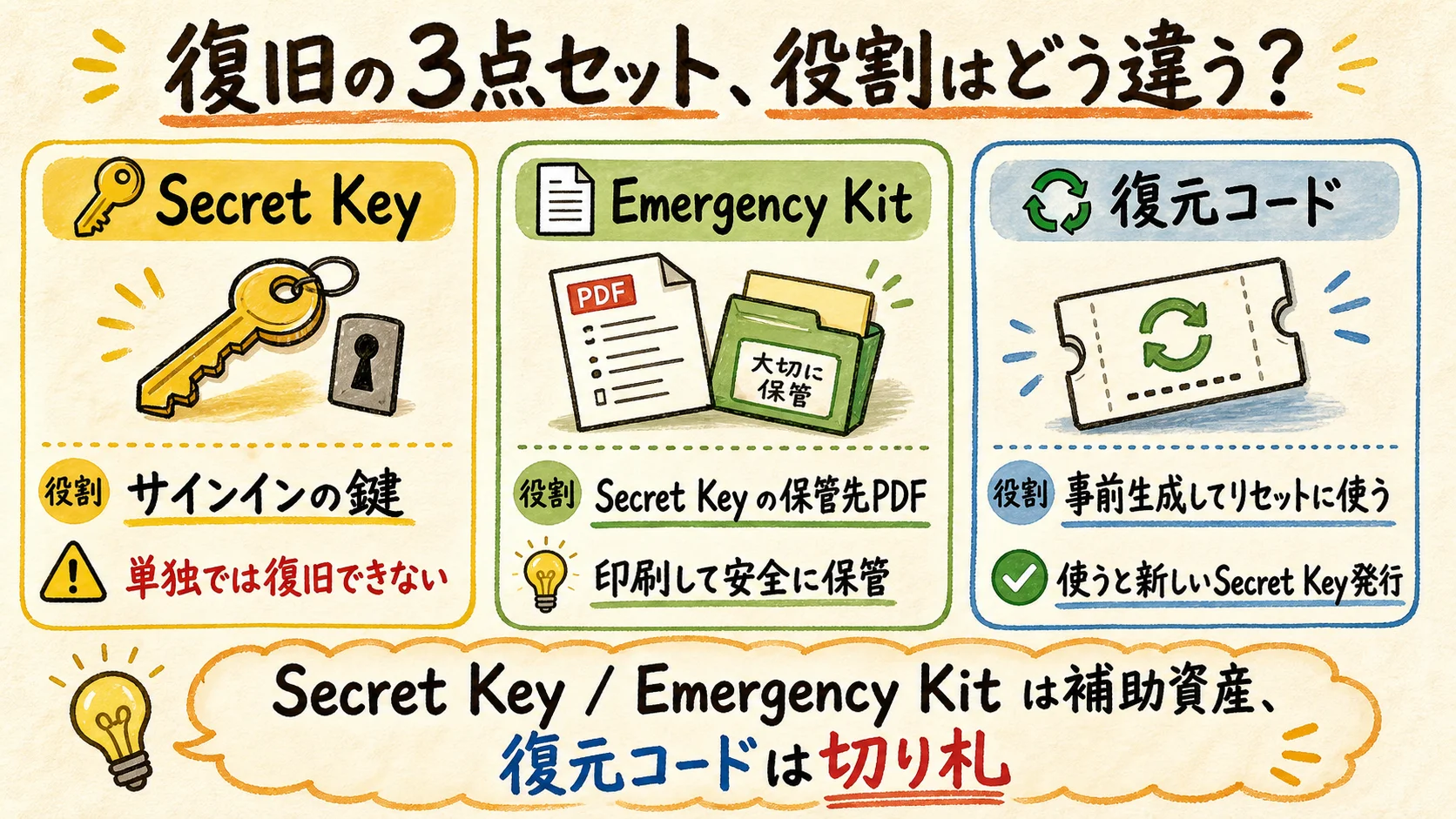
1Password's own account explains why the zero-knowledge model means no one—not even 1Password—can reset your password on your behalf:
A Situation-by-Situation Recovery Checklist
Now for the actual steps. Your first move depends on whether another device is still open, so before you rush to create a new account, work through the order below. The order matters because each step preserves options: securing your Secret Key first keeps every later path available, while starting over closes them permanently. Treat "create a new account" as the very last thing you try, not the first, and give the earlier options a genuine attempt even if they feel slow.
First, Secure Your Secret Key (if another device is open)
- Look for a device where 1Password is still open (unlocked): a phone, another PC, or a browser extension.
- On that device, open Account → Settings and reveal your Secret Key, then copy it somewhere safe.
- If you can find your Emergency Kit PDF, the same Secret Key is printed there too.
- If any device still unlocks with Face ID, Touch ID, or Windows Hello, keep it available as your priority device.
Capturing your Secret Key while you still have a signed-in device is the foundation for everything that follows. 1Password protects your account with two layers—the Secret Key and your master password—so neither one alone lets you sign in again.1 A common mistake is to uninstall or sign out of the working app in a panic; do the opposite and keep that session alive until you have both your Secret Key and a working way back in. If biometric unlock still works on a phone, that device is often your most reliable lifeline because it can reveal the Secret Key without you retyping the master password.
Reset the Master Password With a Recovery Code (individual accounts)
- Have the recovery code you generated and saved in advance ready.
- On the 1Password.com sign-in screen, enter your email and choose the "forgot password / use recovery code" path.
- Enter the recovery code you generated in advance.
- Open the confirmation email you receive and verify your identity through its link.
- Set a new master password. At this point a new Secret Key is issued and your old Emergency Kit stops working, so save the updated Secret Key and Emergency Kit somewhere safe.2
The catch is that a recovery code only works if you generated it beforehand—it is not something you can request after the fact, which is why the prevention section below treats it as the single most valuable step you can take today. Note that it does not require your old Secret Key: resetting with a recovery code issues a fresh one, so this path still works even if you have lost your Secret Key or Emergency Kit. If you never created a recovery code and no device is signed in, skip ahead to the family/team or last-resort sections rather than looping on this screen.
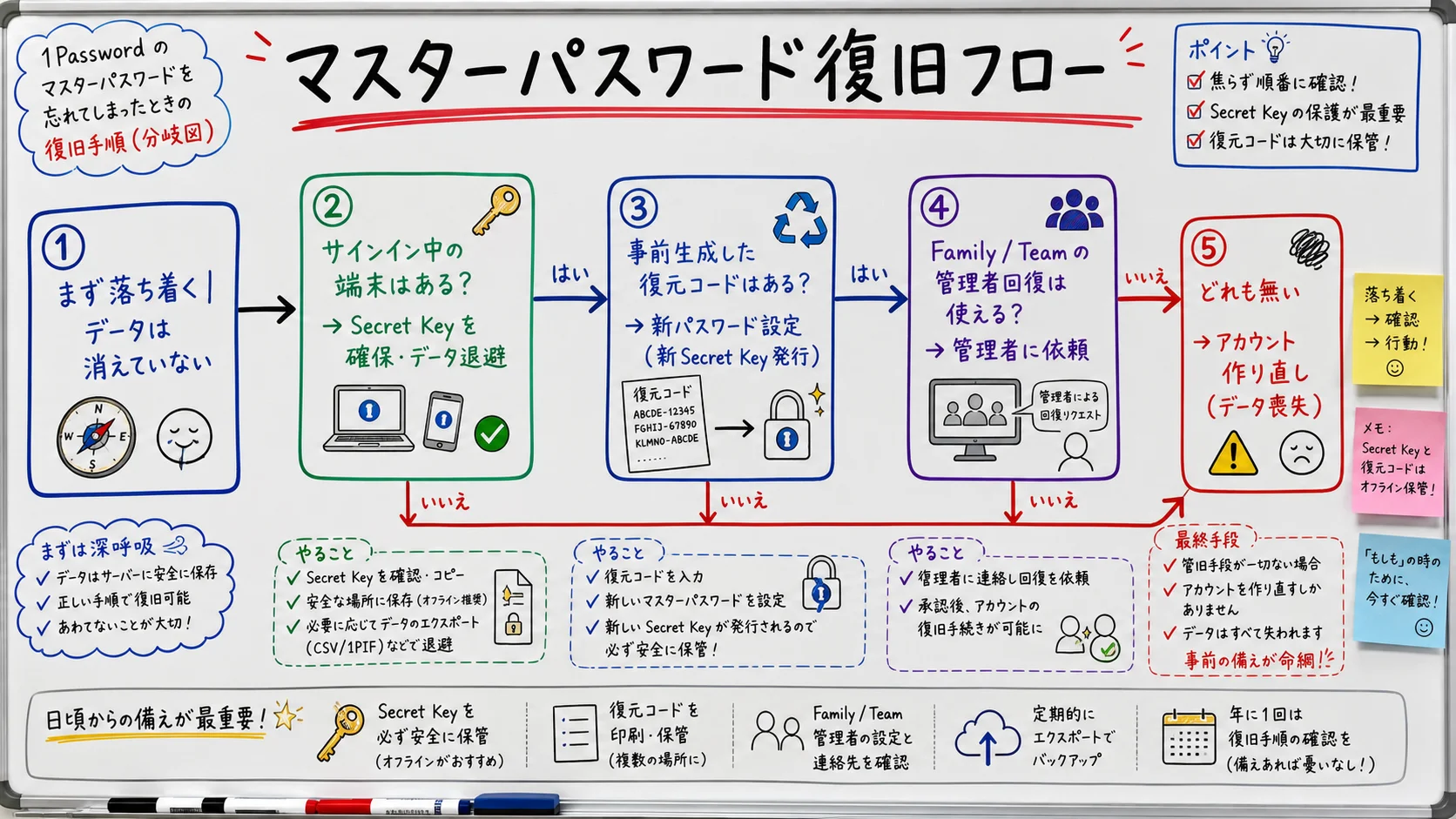
One user highlights how the Emergency Kit PDF stores the Secret Key you need to sign in on a new device:
Troubleshooting: Common Snags and Fixes
These are the points where recovery most often stalls, usually because a prerequisite was missing rather than because a step was done wrong. Here is a quick reference by symptom so you can match what you see on screen to the right fix without guessing.
| Symptom / error | Cause | Fix |
|---|---|---|
| The recovery code screen won't advance | No code was generated in advance, or the code is outdated | Individuals cannot reset without a recovery code; switch to another device or family/team recovery |
| Cannot find the Secret Key | Emergency Kit was never saved | Read the Secret Key from another device's settings; if none exists, contact support |
| Sign-in works but the password won't change | The flow needs your current master password | Start the change flow from account settings on the device that is still open3 |
| The email link never arrives | Spam filtering or a different registered address | Check spam and verify the email address on file |
When you contact support, include which device you use and whether you have an Emergency Kit or a recovery code so they can point you to the right options quickly. Be realistic about what support can do: because of the zero-knowledge design, they cannot see or reset your data, but they can confirm which recovery path applies to your account type and walk you through it. The more precise you are about your situation, the faster that conversation goes—so gather the details above before you open a ticket.
Families and Teams: An Admin Can Recover You
Unlike individual accounts, 1Password Families and Business/Teams plans include admin-initiated recovery. Whether that safety net exists is an important part of your day-to-day operations design.
- Families: a member with the organizer role can start account recovery for other family members.
- Business / Teams: an administrator or a recovery group can recover an employee's account.4
Once recovery begins, the affected member receives guidance to set a new master password and Secret Key. The recovery contact never sees your stored passwords; the mechanism only helps you get back in yourself. This is a big reason organizations standardize on a paid plan rather than a mix of individual accounts—admin recovery turns a lost password from a data-loss event into a five-minute reset. If you manage a team, it is worth deciding in advance who holds the recovery role and documenting it, so a forgotten password on a Friday afternoon does not block someone all weekend.
If you want to plan shared vaults and emergency access ahead of time, our Families setup guide covers everything from invitations to assigning a recovery contact. If you stay on an individual plan, the prevention steps in the next section (pre-generating a recovery code) are your practical insurance.
The Last Resort (Start Over) and Verifying Recovery
If no device is signed in and you have no Emergency Kit, recovery code, or admin recovery, the only option left is to start over with a new account. Be aware that this erases all your saved passwords and items.
After starting over, you rebuild from scratch. Before you do, it pays to scavenge every credential you can still reach: passwords cached in your browser, accounts that will let you reset via email, and any authenticator backups. If your browser still has saved logins, you can begin the minimum rebuild by importing your Chrome passwords, then work through your most critical accounts first—email, banking, and anything tied to two-factor recovery.
Skipping verification is a common cause of a second lockout a week later, when a phone that never re-synced quietly holds the old credentials. Once recovery or a password change is complete, verify the following:
- You can sign back in on every device with the new master password.
- Mobile apps and browser extensions are syncing with the new credentials.
- Your Secret Key and a fresh Emergency Kit are stored somewhere safe again.
Prevention and Summary
Finally, here is how to avoid a repeat. To keep using 1Password with peace of mind, the biggest win is setting up a "get back in even if you forget" state ahead of time.
- Generate a recovery code in advance: create it while you can still sign in, then print and store it physically.
- Store the Emergency Kit in more than one place: keep a physical copy plus a secure cloud backup.
- Set up emergency access for family: use Families organizer recovery or emergency access to create a fallback path.
- Use a strong, memorable master password with a hint: avoid reuse and attach a hint you can recall.
A good habit is to schedule a five-minute "recovery drill" once or twice a year: confirm your recovery code still exists, verify you can locate your Emergency Kit, and check that at least one trusted device or contact can get you back in. That small routine is far cheaper than rebuilding a vault from memory. For teams, fold the same check into onboarding and offboarding so recovery coverage never quietly lapses.
In short, 1Password recovery is 90% preparation. Zero-knowledge design limits after-the-fact rescue, but if you know where your Secret Key lives and keep a recovery code and Emergency Kit ready, forgetting your master password does not have to be a disaster. Right now, on a device where you can still sign in, check whether you have generated a recovery code.
Information current as of 2026-07-14. Please check the official sites for the latest updates.
This article contains affiliate links.
Footnotes
-
1Password Support, "Learn about your Secret Key." https://support.1password.com/secret-key/ ↩ ↩2
-
1Password Support, "Generate and use recovery codes" https://support.1password.com/recovery-codes/ and "If you forgot your 1Password account password" https://support.1password.com/forgot-account-password/ ↩
-
1Password Support, "Change your 1Password account password." https://support.1password.com/change-account-password/ ↩
-
1Password Support, "Recover accounts for family or team members." https://support.1password.com/recovery/ ↩
Frequently asked questions
Related articles
1Password Families Setup Guide: Sharing, Vaults & Recovery
Move Chrome Passwords to 1Password: A 2026 Migration Guide