1Password SCIM Bridge Setup 2026: Automated Provisioning Guide
How to set up 1Password SCIM automated provisioning: plan requirements, hosted vs self-hosted SCIM Bridge, Okta/Entra ID wiring, and troubleshooting.
This article contains affiliate links (advertising).
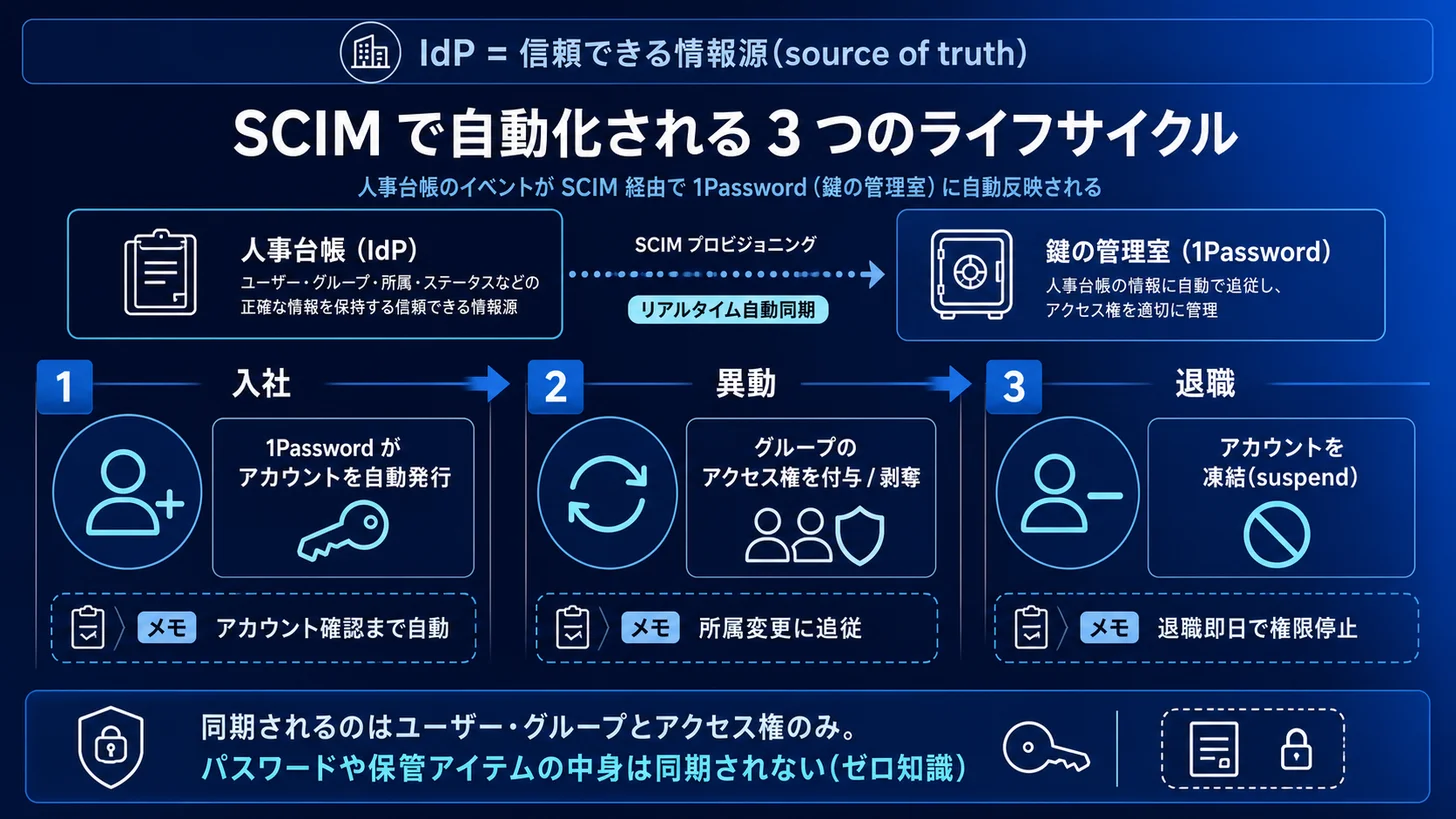
1Password SCIM automated provisioning keeps your identity provider (Okta, Microsoft Entra ID, and others) as the source of truth: add or remove an employee in the IdP, and 1Password provisions the account, assigns groups, and suspends leavers automatically. You need just two things: a Business-or-higher plan and either a self-hosted SCIM Bridge or hosted automated provisioning. This guide walks the setup in order, from prerequisites to deploy, IdP wiring, verification, and rollback, with a cheat sheet so you can sidestep the settings mistakes that trip most teams.
What SCIM Automated Provisioning Is, and the Prerequisites
SCIM (System for Cross-domain Identity Management) is the standard for syncing user records between an IdP and a SaaS. In 1Password, it lets you automate "provision on hire," "reassign groups on transfer," and "suspend on departure." The biggest payoff is structural: you remove manual invites and deletions and shrink the risk of a forgotten leaver account.
It helps to be precise about scope. SCIM syncs identity lifecycle events, specifically creating users and groups, granting and revoking group access, and suspending users who leave. It does not sync the contents of your vaults. Because 1Password uses a zero-knowledge architecture, the passwords and items you store are never exposed to the IdP or to the SCIM Bridge; only the membership and account-state metadata moves. That boundary is exactly why SCIM is safe to wire into your identity stack: it automates access without handing your secrets to another system.
The other reason teams adopt it is audit readiness. When joiners, movers, and leavers are all driven from one IdP, your access model becomes reviewable in one place instead of scattered across manual invitations. That single source of truth is what makes quarterly access reviews and offboarding provable rather than best-effort.
Confirm these prerequisites first. Missing any of them guarantees a snag later.
- Plan: SCIM requires 1Password Business or Enterprise. Individual, Families, and Teams Starter Pack do not qualify.
- Admin rights: Owner or Administrator in 1Password (needed to configure provisioning and issue the scimsession).
- Supported IdP: Okta, Microsoft Entra ID, Google Workspace, JumpCloud, OneLogin, Rippling, and others.
- Deploy target (self-hosted only): Google Cloud, DigitalOcean, Azure Container Apps, Kubernetes, or Docker.
If you want the cost picture before you design the rollout, our 1Password Business pricing breakdown lays out per-headcount estimates so the SCIM operating model is easier to plan around.
Choosing a Deploy Method: Hosted Provisioning vs. Self-Hosted SCIM Bridge
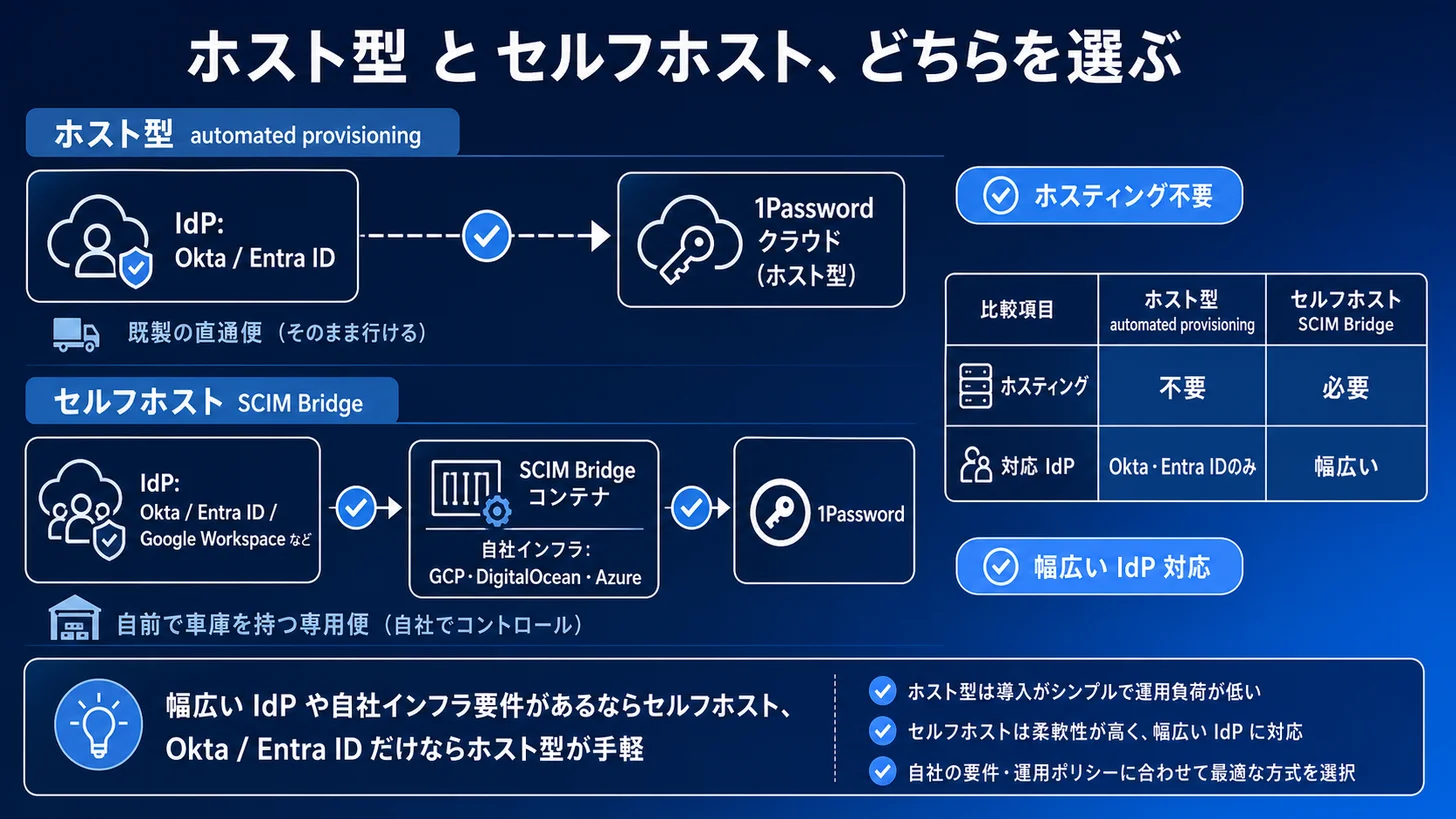
As of 2026 there are two ways to run SCIM, and the choice drives most of your setup effort, so decide it first. 1Password offers "hosted automated provisioning" for Okta and Microsoft Entra ID, which means no server to stand up. If those two IdPs cover you, it cuts build cost sharply. For any other IdP, or when you have your own infrastructure requirements, deploy the Docker image (1password/scim) yourself as a self-hosted SCIM Bridge.
| Dimension | Hosted automated provisioning | Self-hosted SCIM Bridge |
|---|---|---|
| Supported IdPs | Okta / Microsoft Entra ID | Okta / Entra ID / Google Workspace / JumpCloud / OneLogin / Rippling, and more |
| Infrastructure | None (1Password hosts it) | Your own (GCP / DigitalOcean / Azure Container Apps, etc.) |
| Operating load | Low (no server or updates to manage) | Medium (redeploys, monitoring, cert renewals) |
| SCIM endpoint | https://provisioning.1password.com/scim/v2 | The /scim/v2 path on the URL you deploy |
| Best when | Okta / Entra ID and you want a fast start | You use a broader set of IdPs or need to own the data location |
The case-by-case winner is simple. On Okta or Entra ID, try hosted first: it is the shortest path. If you run Google Workspace or JumpCloud, or you need the endpoint under your own network control, the self-hosted SCIM Bridge is the practical answer.
A common mistake is defaulting to self-hosting because it feels more "in control." Self-hosting is a standing operational commitment: you own the container, the TLS certificate, the redeploys when a new SCIM Bridge image ships, and the monitoring that tells you when sync has stalled. If your IdP is supported by the hosted path, that ongoing maintenance disappears and 1Password carries the uptime. Reach for self-hosting when a real requirement forces it, not by reflex. Conversely, if a compliance or network policy says the SCIM endpoint must live inside your own perimeter, hosted is off the table and the self-hosted Bridge is the only option that satisfies the constraint.
Deploying a Self-Hosted SCIM Bridge Step by Step
Building the self-hosted path is three stages: issue credentials, deploy, and connect the IdP. Follow this checklist and you will not lose your place.
- Open the "Provisioning" settings in the 1Password admin console and issue the scimsession file and bearer token.
- Pick a deploy target (Google Cloud, DigitalOcean, Azure Container Apps, Kubernetes, or Docker).
- Use the per-environment template in the
1Password/scim-examplesrepo and deploy the SCIM Bridge, passing the scimsession as a secret. - Confirm the deployed SCIM Bridge domain is reachable over HTTPS with a valid TLS certificate.
- Add the 1Password app in your IdP and set the SCIM URL (
https://<your-bridge>/scim/v2) and bearer token. - Configure attribute mapping, then run a sync with a test user and test group to check the result.
A few notes make these steps go smoother. In step 1, treat the scimsession like any other high-value secret from the moment it is generated. In step 3, prefer the template that matches your team's existing platform: if you already run workloads on Google Cloud or Azure, use that target so the SCIM Bridge inherits your existing networking, logging, and secret management rather than introducing a new environment. In step 5, copy the SCIM URL and bearer token exactly, without extra whitespace, because a stray character is a leading cause of failed connection tests. Do step 6 with a throwaway test user, not a real employee, so a misconfiguration never touches production access.
For a post-deploy smoke test, hit the SCIM Bridge /Users endpoint with the bearer token and confirm you get a response.
curl https://<your-scim-bridge-domain>/scim/v2/Users \
  -H "Authorization: Bearer <bearer-token>"
Deploy templates and parameters for each environment live in the official scim-examples repo, so you never start from scratch12. For the broader rollout, from invites to adoption, our 1Password team onboarding guide documents the sequence; running it alongside SCIM keeps operations stable.
The Roles of scimsession and bearer token
The scimsession is the credential the SCIM Bridge uses to reach your 1Password tenant; the bearer token is what your IdP uses to authenticate to the SCIM Bridge. Pass the scimsession as a secret (secret manager or secret env var) and never leave it in plaintext in a repo or logs. Manage the two together: if you regenerate one, update the other.
Think of the two credentials as guarding opposite ends of the same pipe. Compromise of the bearer token lets an attacker push provisioning calls into your Bridge; compromise of the scimsession undermines the Bridge's access to your tenant. That is why the rollback lever in an incident is simply to revoke the bearer token: it severs the IdP-to-Bridge link instantly while you investigate. Rotating these credentials on a schedule, and immediately when a laptop or CI runner that held them is decommissioned, keeps the blast radius small.
IdP-Side Settings and a Troubleshooting Cheat Sheet
On the IdP side you configure four things: SCIM URL, auth token, attribute mapping, and the groups to sync. Slips here account for most "not syncing" and error cases. Here is a cheat sheet of common symptoms and fixes.
| Symptom / error | Cause | Fix |
|---|---|---|
| Users don't sync | App has no group assigned / required attributes unmapped | Assign a group to the app in the IdP and map required attributes such as email |
| 401 Unauthorized | Bearer token mismatch | Check the token entered in the IdP matches the SCIM Bridge scimsession; regenerate if needed |
| Entra ID connection test fails | Trailing slash on the Base URL | Remove the trailing slash so it ends in .../scim/v2 (a frequent Entra ID mistake) |
| Can't reach the SCIM Bridge | Missing TLS cert or custom domain | Verify HTTPS reachability and that the certificate is valid |
| Groups sync but members are empty | Group membership push not enabled | Enable "Push groups" or member sync on the IdP side |
The trailing slash on the Microsoft Entra ID Base URL is the classic reason a connection test won't pass. For mid-size and larger orgs that need to review access continuously, centralizing "who can open which vault" onto IdP groups with 1Password Business SCIM is where the biggest operating-load reduction comes from.
Verifying the Sync and Rolling Back
Never point your entire user base at sync on day one. Always verify with a test group before you widen scope. Check three behaviors.
- Create: assign a test user to the app in the IdP and confirm the account is provisioned in the 1Password admin console.
- Grant / revoke: add and remove a group and confirm access to the corresponding vault changes.
- Suspend: disable the user in the IdP and confirm 1Password suspends the account.
Run these checks in order and watch both sides: the change you make in the IdP and the resulting state in the 1Password admin console. A green connection test is not proof of correct provisioning; only observing an actual user appear, move between vaults, and get suspended tells you the mapping is right. Keep the test group small enough that you can eyeball every result.
If something is off, pause provisioning on the IdP side to stop the sync. In an emergency, revoking the bearer token immediately blocks any change coming through the SCIM Bridge. Note that suspending a user in 1Password via SCIM does not delete their data; it locks access while preserving the account, which is what you want for a clean, reversible offboarding. If you need an audit trail of the suspends and revokes SCIM performs, our 1Password audit log operations guide covers Events API and SIEM design.
We run our own internal and client-project credentials in 1Password, so we can help design and validate SCIM sync and SSO connections. Early attribute-mapping design and separating out test runs are exactly where rework piles up if you get them wrong, so it pays to settle them in the first pass.
Summary: Automate Access Management With SCIM
1Password SCIM automated provisioning is buildable with a Business-or-higher plan plus a SCIM Bridge (or hosted automated provisioning). Three points: (1) use hosted for Okta / Entra ID and self-host otherwise, (2) handle the scimsession and bearer token safely and pre-empt classics like the Entra ID Base URL trailing slash with the cheat sheet, and (3) always verify grant, revoke, and suspend on a test group before production. Do it in that order and you eliminate forgotten leaver accounts and centralize access reviews onto your IdP. Start by checking whether your IdP is supported by hosted provisioning.
Information current as of 2026-07-06. Please check the official sites for the latest updates (pricing at https://1password.com/jp/pricing , GCP deploy example at https://support.1password.com/scim-deploy-gcp/ ).
This article contains affiliate links.
Footnotes
-
1Password Support, "Set up automated provisioning using the 1Password SCIM Bridge." https://support.1password.com/scim/ ↩
-
1Password/scim-examples (deploy templates for GCP, DigitalOcean, Azure Container Apps, and more). https://github.com/1Password/scim-examples ↩
Frequently asked questions
Related articles
1Password Business Pricing 2026 — Cost Per Headcount and Teams Starter Pack Comparison
1Password Team Onboarding Guide 2026: Invites to SSO/SCIM