1Password Team Onboarding Guide 2026: Invites to SSO/SCIM
Roll out 1Password Business/Teams in onboarding order: admin setup, invites, Vault/group design, policies, and SSO/SCIM, with fixes for stalled invites and Vault sprawl.
This article contains affiliate links (advertising).
Rolling out 1Password to a team won't stick if you just blast invite emails. The key to success is designing the rollout in onboarding order: admin setup, Vault/group design, policies, SSO/SCIM, and adoption. This guide is written for IT admins, covering the stumbling points — invites that never land and Vault permissions that spiral — with concrete fixes, and laying out a deployment flow detailed enough for both budget sign-off and the front line.
The Big Picture and Plan Selection for 1Password Team Onboarding
A 1Password team rollout starts from one of the Teams Starter Pack, Business, or Enterprise plans, and you build your org out from the admin console. The first thing to internalize: think of onboarding as a sequence.
The Recommended Onboarding Order
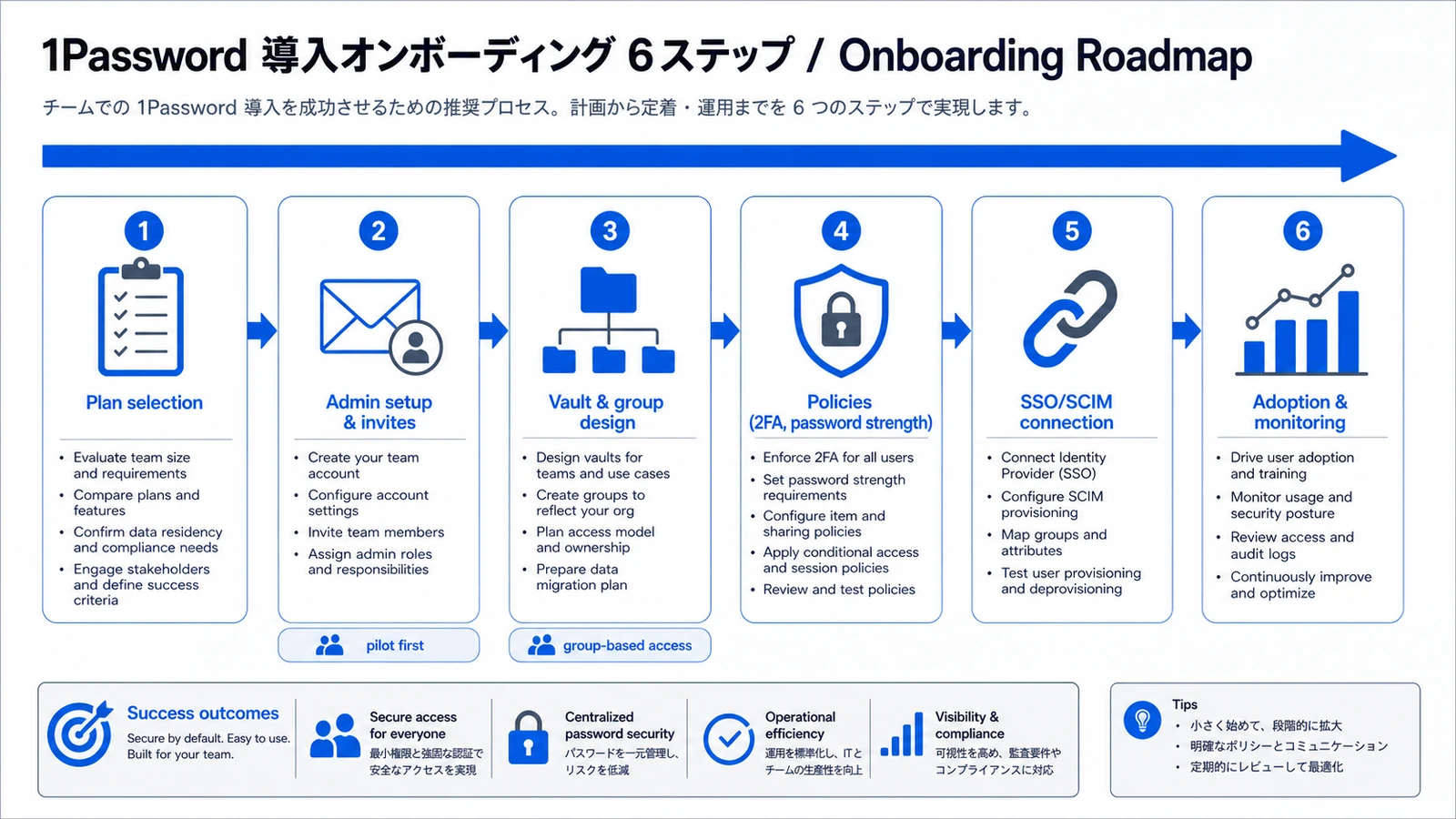
Run the deployment in these six steps to minimize backtracking.
- Pick a plan (Teams Starter Pack / Business / Enterprise)
- Create the account and set the initial Owner (keep Owners minimal)
- Invite Administrators (2–3 to start)
- Configure SSO (SAML) + SCIM together (before company-wide rollout)
- Design Vaults/groups and apply policies (require 2FA, password strength)
- Onboard in stages (pilot → by department → company-wide)
Skip the order and start from "invite everyone," and members drift into using it however they like before Vault design and policies are locked — making it hard to impose control later.
Plan-Selection Criteria
| Plan | Monthly (as of May 2026) | Best for |
|---|---|---|
| Teams Starter Pack | $19.95 flat, billed annually (~¥3,000, up to 10 users)1 | 5–10 people, small teams without SSO |
| Business | $7.99/user (~¥1,200, billed annually)2 | 10–200 people, needs SSO/SCIM and audit logs |
| Enterprise | Contact sales | 100+ people, dedicated CSM, SLA, advanced SAML |
The switch to Business comes when you need SSO, SCIM provisioning, or detailed audit logs. For a detailed break-even by size, 1Password Business Pricing 2026 works through the 5/20/50/150-person cases — use it as the cost basis in your proposal.
Admin Setup and Designing Member Invites
The first thing teams trip over is getting invites to land. You solve this with design.
Separating Owner and Administrator Roles
The Owner account created first holds the top-level rights, all the way to billing and tenant deletion. Too many Owners means you lose control, so keep Owners to one or two and delegate daily operations to Administrators.
- Owner: Billing, tenant settings, final deletion rights. Keep it minimal but redundant (2+) to cover departure risk
- Administrator: User management, SCIM setup, Vault permission design. Start with 2–3 and delegate over time
- Member: Regular employees with access only to assigned Vaults
Fixing the "Invites Don't Land" Problem
A "fireworks" rollout that blasts invite emails company-wide almost never sticks — most recipients defer the email, get stuck in setup, and drop off. Three fixes:
- Run a pilot first: Operate with 10–20 IT staff up front, build an internal FAQ and a troubleshooting list, then go wide
- Stage invites by department: Split invites per team and bring in department heads to drive activation
- Distribute a quick start: Package browser-extension and mobile-app setup into a single-page guide attached to the invite email
1Password launched the free "1Password Academy" learning platform in 2026; folding its admin and end-user video content into onboarding raises adoption rates.
For context, 1Password's own messaging leans on learning resources for adoption rather than "invite and done," which backs up this rollout design.
Avoiding Vault and Group Design Pitfalls
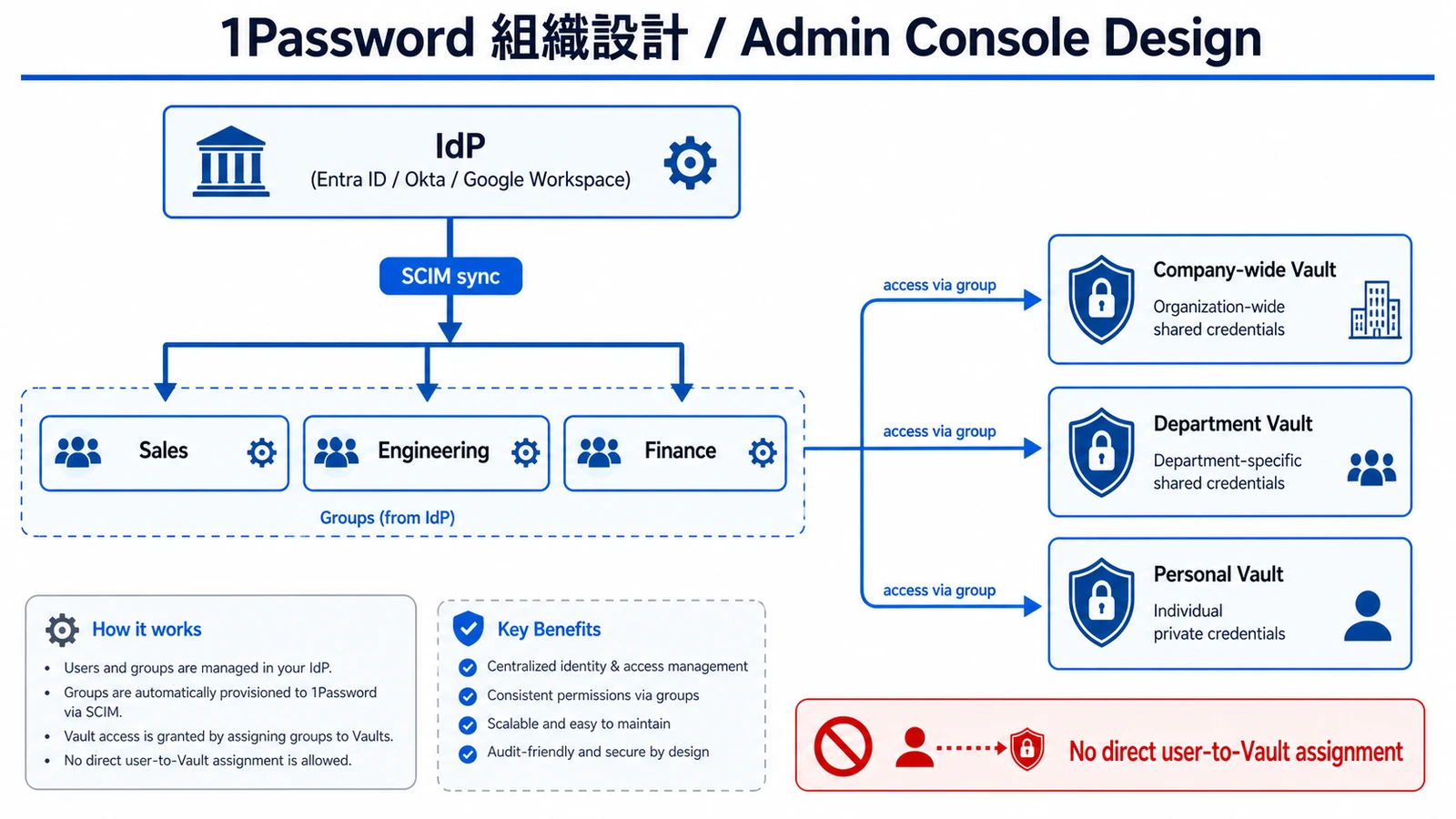
The second thing teams trip over is Vault-permission sprawl. Spin up a Vault per project and within six months no one can tell who has access to what.
Start With Just Three Layers
Don't over-segment. Begin with these three layers.
- Company-wide Vault: Internal tools and shared accounts everyone uses
- Department shared Vaults: Credentials that stay within sales, engineering, finance, and so on
- Personal Vaults: Each employee's own work logins (Business also grants free Families licenses for employees' households)
Add project-level Vaults only when needed. Over-segment from the start and the management surface explodes.
Grant Access to Groups, Not Users
The single most important principle: never assign users directly to a Vault — always grant access through groups.
| Design approach | Work on join/leave/transfer | SCIM compatibility |
|---|---|---|
| Assign individuals to Vaults | Manually edit every Vault one by one | Drift remains even when synced |
| Assign groups to Vaults | Change group membership only | IdP group changes reflect directly |
With group-based access, all you touch on a join, departure, or transfer is group membership. When SCIM is connected, group changes on the IdP side (Entra ID / Okta / Google Workspace) flow straight through to 1Password Vault access, cutting operational load dramatically.
Locking Down Policies (Require 2FA, Password Strength)
Alongside Vault design, lock down security policies in the admin console. Defer this and you roll out company-wide on loose settings, then can't tighten them later.
Policies to Enable Without Fail
- Require two-factor authentication (2FA): Enforce 2FA for all members, require an authenticator app or security key, and restrict sign-in for those who haven't set it up
- Master-password strength requirements: Set minimum length and complexity as an org policy
- Sign-in attempt limits and device approval: Make access from unfamiliar devices subject to admin approval
- Sharing restrictions: Limit which Vaults allow external guest sharing; keep sensitive Vaults internal-only
Apply Policies in Bulk to Lighten Operations
Set policies by hand per member and you'll inevitably miss someone. For larger orgs, applying policies in bulk via policy templates is far more efficient.
[Translation] Policy templates let you apply security policies across the whole organization at once, removing the chore of configuring users one by one and standardizing control (1Password official).
Standardize policies at the group or org level and the correct settings apply the moment a new member is added, closing the security holes that come from missed configuration. If you want control that extends to newer risks like shadow AI, Shadow AI Governance With 1Password Business 2026 walks through visibility and audit design using Unified Access.
SSO/SCIM Integration (Entra ID, Okta, Google Workspace)
What you want finished before company-wide rollout is SSO and SCIM integration. This is what determines the operational load of your team rollout.
Configure SSO and SCIM Together
1Password Business combines SSO (SAML authentication) with SCIM (automated provisioning). Their roles:
- SSO (SAML): Centralizes login on the IdP. Employees sign in to 1Password with the Entra ID / Okta / Google Workspace account they already use
- SCIM (provisioning): Auto-creates accounts on hire, auto-deactivates on departure, and reflects group changes on transfer
Bring up SSO alone and user adds/removals stay manual, so operations don't get lighter. SCIM alone doesn't change the login experience, so adoption lags. Configuring both at once is the recommendation.
Setup Steps by IdP
- Stand up the SCIM bridge on the 1Password side: Enable SCIM provisioning from the admin console and issue a Bearer Token
- Add the app integration on the IdP side: Add 1Password from "Enterprise applications" on Entra ID, "Application Integration" on Okta, or "Web and mobile apps" on Google Workspace
- Configure SAML (SSO): Exchange metadata and switch sign-in to go through SSO
- Map SCIM groups: Map IdP groups to 1Password groups
- Validate with a small test: Confirm join/leave/transfer behavior with test users before going wide
[Translation] For more than 30 users, or when strict RBAC, audit logs, and dedicated support are required, the Enterprise plan becomes an option. Phased SSO/SCIM adoption is the standard approach (practitioner insight).
The Licensing Pitfall
A common snag in SSO/SCIM integration is IdP-side licensing. Microsoft Entra ID Free won't run SCIM provisioning, so the cost of upgrading to Entra ID P1 or higher rides along as a "hidden deployment cost." Okta and Google Workspace also vary in SCIM support by plan, so always verify IdP licensing before rollout.
Monitoring Adoption and Continuous Improvement
A team rollout doesn't end at the SSO/SCIM connection. You need to keep measuring whether adoption has stuck and tighten it as you go.
Three KPIs to Measure Adoption
Using the admin console's Activity Log and member status (invited, confirmed, suspended) as the starting point, track these three KPIs.
- 7-day activation rate after invite: Judges how the launch landed. If low, strengthen department-level follow-up
- Browser-extension adoption rate: Confirms it's embedded in daily work. If low, re-distribute the quick start
- Trend in Watchtower weak/reused passwords: Visualizes security-hygiene improvement
Share these monthly with leadership and decisions on extra licenses and training budget go smoothly.
Quarterly Housekeeping
- Archive project Vaults that are no longer needed to keep complexity down
- Check via SCIM logs that group membership and IdP reality haven't drifted
- Detect anomaly patterns from the Activity Log (spikes from departing employees, large late-night pulls)
We also support in-house 1Password deployments (operational policy design, SSO/SCIM connection design, employee training design). On our AI engineering projects, we manage LLM provider API keys and SaaS credentials with 1Password Secrets Automation, and we've organized that operational know-how in 1Password Secrets Automation in CI 2026.
Conclusion: Design Onboarding as a Sequence
A 1Password Business team rollout succeeds not by blasting invite emails, but by designing it as a sequence: plan selection → admin setup → Vault/group design → policies → SSO/SCIM → adoption.
- Beat the "invites don't land" problem with a pilot and staged, department-level invites
- Prevent Vault-permission sprawl with a three-layer structure and group-based access
- Configure SSO and SCIM together, and verify IdP licensing up front
- Measure adoption with three KPIs and tighten it with quarterly housekeeping
The deciding criterion isn't "did you hand out the tool" but "did you drive adoption in sequence and get it into operation." Keep the order, and a low-friction rollout is achievable at 10 people or 200.
Information current as of 2026-05-31. Please check the official sites for the latest updates.
This article contains affiliate links.
Footnotes
-
1Password official: "Pricing - Teams Starter Pack" https://1password.com/teams (Teams Starter Pack is $19.95 for up to 10 users, billed annually, as of May 2026) ↩
-
1Password official: "Pricing - Business" https://1password.com/business (Business is $7.99/user/mo billed annually, as of May 2026) ↩
Frequently asked questions
Related articles
1Password Business Pricing 2026 — Cost Per Headcount and Teams Starter Pack Comparison
Shadow AI Governance With 1Password Business 2026: SSO/SCIM + Unified Access