1Password Secrets Automation in CI 2026 — Service Accounts, Connect, and the New MCP Server
A practical 2026 guide to 1Password Secrets Automation: when to pick Service Accounts vs Connect Server vs op CLI, how to wire load-secrets-action into GitHub Actions, and what the new MCP server for AI coding agents changes.
This article contains affiliate links (advertising).
1Password Secrets Automation lets your CI pipelines, servers, and apps fetch credentials from a single vault instead of pasting raw API keys into repository secrets. Four building blocks — Service Accounts, Connect Server, the op CLI, and the newly released MCP server — cover the entire range of distribution patterns from a developer laptop to a production AI agent. This guide focuses on the implementation decisions you actually have to make: which mechanism to pick for a given runtime, what a real GitHub Actions integration looks like end-to-end, the governance defaults to ship on day one, and what changed in May 2026 with the AI agent MCP integration. By the end you should be able to choose a starting configuration with confidence and know which trade-offs come due as the rollout matures.
What Problem Does Secrets Automation Solve?
Secrets Automation is the umbrella term for 1Password's mechanisms that move secrets from a human-managed vault into automated runtimes without anyone copying and pasting values into another tool. Think of it as a delivery layer that sits between the human-facing vault and every system that needs a credential — CI runners, scheduled jobs, on-call automation scripts, and now AI coding agents. The point is to remove the human-in-the-loop step that historically caused most of the friction and most of the leaks. There are four building blocks.
Four Core Components
- Service Account: A non-human account that accesses vaults via API; one token reads or writes one or more vaults1
- Connect Server: A self-hosted API service you run via Docker or Kubernetes, suitable for private networks and high-volume use cases2
- op CLI and op inject: Command-line tools used in local development and ad-hoc scripts, with template syntax like
op://vault/item/field3 - MCP Server (new in 2026): A reference-resolution layer designed for AI coding agents such as Codex4
How This Differs From Repository Secrets
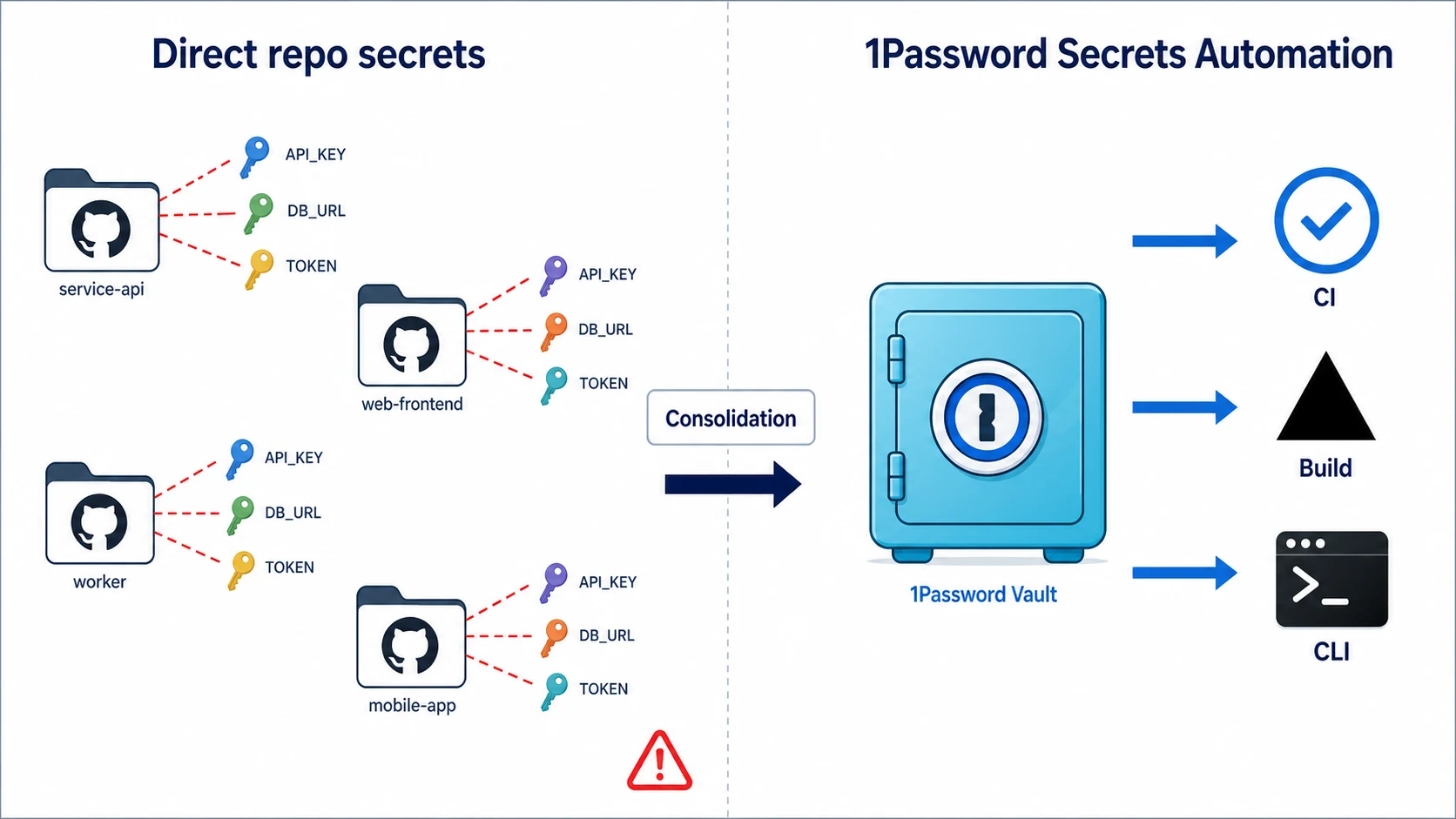
Pasting API keys directly into GitHub Actions repository secrets or Vercel environment variables leaves you with three structural problems.
- Once a secret leaves your hands, it is hard to trace: There is no record of who looked at it, when, or how it was copied
- Rotation depends on manual hygiene: When an admin leaves the company, you rely on a person remembering to rotate every secret they had access to
- Same value pasted everywhere: Across many CI providers and many projects, update work scales linearly with the surface area
Centralizing into Secrets Automation means updating one vault item rather than dozens of CI dashboards, with a full audit log showing which job accessed which secret at what time. The other benefit is psychological: developers stop treating the repository secrets list as a "junk drawer" of credentials they no longer remember the purpose of, because there is only ever one place to look.
Choosing Between Service Accounts, Connect, and the op CLI
The three classic distribution paths have different sweet spots. As of 2026, "use a Service Account unless you have a reason not to" is the default heuristic.
Service Accounts: Best Fit for SaaS CI Like GitHub Actions and Vercel
For runners hosted on GitHub Actions, CircleCI, Vercel Build, or Cloudflare Workers Builds, the official 1password/load-secrets-action paired with a Service Account is the shortest path1. The Action handles authentication, value resolution, and environment variable injection, so application code does not need any 1Password-specific imports or wrappers.
A minimal GitHub Actions workflow looks like this.
- uses: 1password/load-secrets-action@v2
  env:
    OP_SERVICE_ACCOUNT_TOKEN: ${{ secrets.OP_SERVICE_ACCOUNT_TOKEN }}
    OPENAI_API_KEY: "op://Production/OpenAI/api-key"
    DATABASE_URL: "op://Production/Postgres/connection_string"
- run: npm run deploy
References use the op://VaultName/ItemName/Field syntax. The Action resolves them at runtime, so the only repository secret you ever store is OP_SERVICE_ACCOUNT_TOKEN. Teams adopting this pattern typically delete every other repository secret within a few weeks, because there is no longer a reason to hold any individual credential in GitHub's UI.
Connect Server: On-Premise, Air-Gapped, and High Throughput
For workloads that cannot reach 1Password's public API — typical of on-premise hosting, restricted networks, or pipelines that exceed Service Account rate limits at the tens of thousands of requests per day — run Connect Server in-house2. The official Docker Compose and Helm chart templates spin up the two-container op-connect-api and op-connect-sync pair inside your network. When pairing Connect with load-secrets-action, the connect-host input points the Action at your internal URL instead of the public API. The trade-off is that Connect introduces an operational surface — patching, certificate rotation, high-availability tuning — that your team owns. For most SaaS-CI teams this overhead is not worth it; reserve Connect for environments where the network boundary is non-negotiable.
op CLI: Local Development and Ad-Hoc Scripts
The op CLI shines in local development, one-off scripts, and partial stages inside CI pipelines3. Common patterns:
# Template expansion: resolve op:// references in env.tpl and emit a .env file
op inject -i .env.tpl -o .env

# Single value: read straight into an environment variable
export OPENAI_API_KEY=$(op read "op://Dev/OpenAI/api-key")

# Run with a Service Account (works identically in CI and on a laptop)
export OP_SERVICE_ACCOUNT_TOKEN=ops_xxxxxxxxxxxx
op run -- node scripts/migrate.ts
op run inherits resolved values into the child process's env but tears them down on exit, which keeps secrets out of shell history. This makes it especially valuable for engineers who need to debug locally with production-grade secrets without leaving artifacts on disk. For broader patterns around managing SSH keys and signing material with the same toolchain, see our 1Password SSH key management guide. The two areas share the same Service Account scoping model, separated only by vault boundaries, so a single rollout often unifies both use cases.
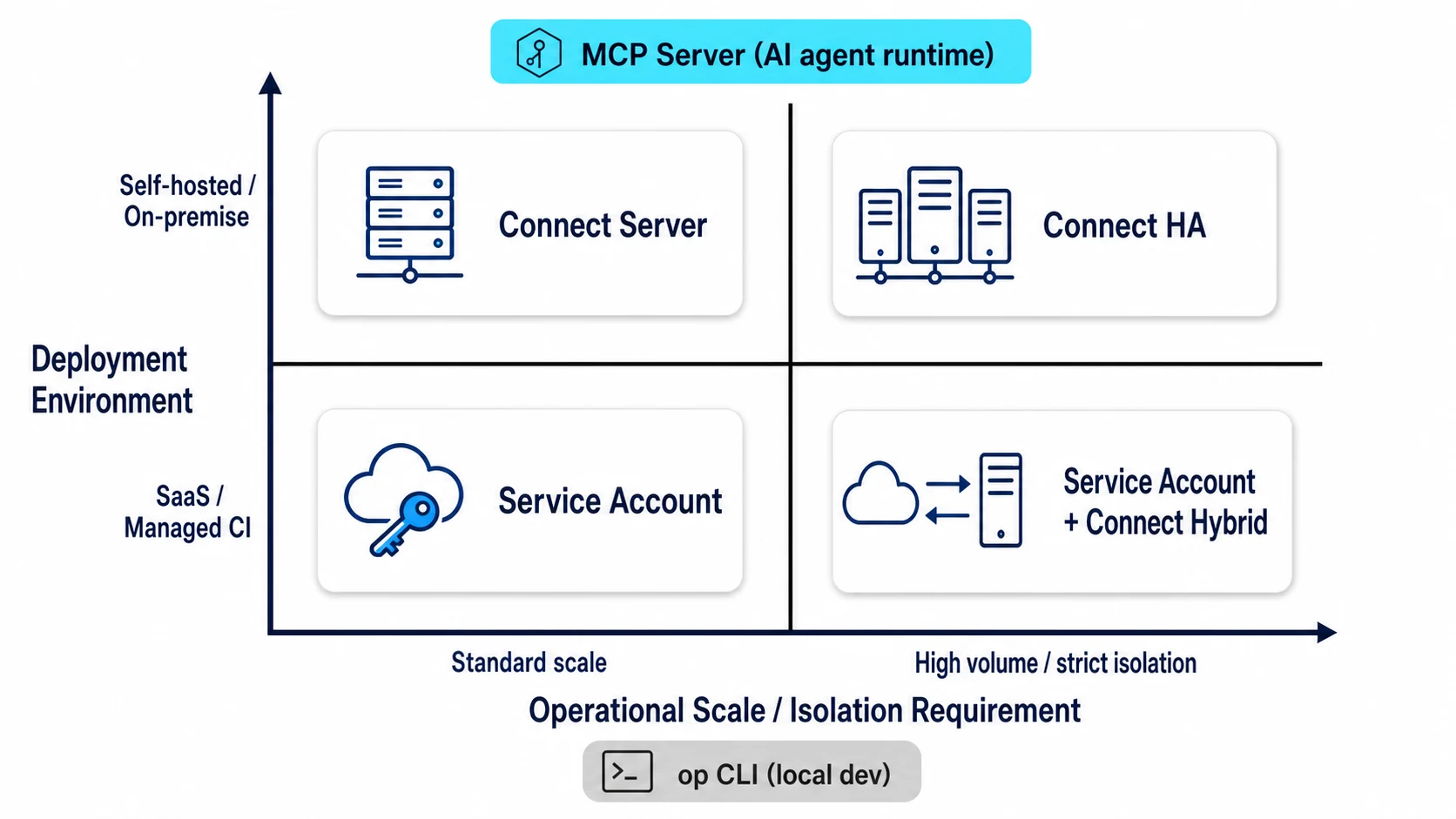
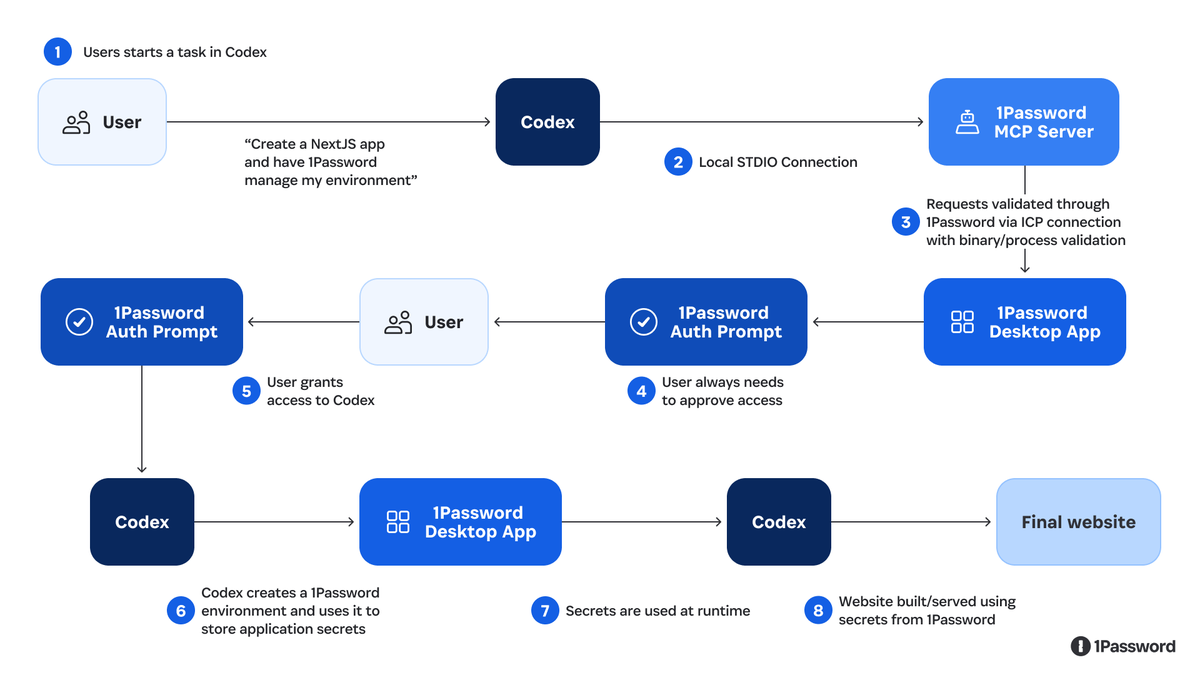
1Password Build announcing the new Environments MCP server for OpenAI Codex: secrets stay out of prompts, code, and context windows; the agent reasons over references and resolves them only at runtime.
A 7-Step GitHub Actions Integration
Here is the minimum integration broken into seven steps. First-time setup takes 30 to 45 minutes, and you can use the same playbook for any other GitHub repository afterward without revisiting the platform-level configuration.
- Create vaults per environment: We recommend
Production,Staging, andDevso you can scope by least privilege. Avoid the temptation to use a single shared vault even at small scale — splitting now is essentially free, splitting later is painful - Create a Service Account: 1Password admin console > Service Accounts > New, picking the vaults and read vs read+write level. Most CI jobs need read-only
- Store the token as a repository secret: Use the name
OP_SERVICE_ACCOUNT_TOKEN. This is the only repository secret you will keep going forward - Update the workflow YAML: Add
1password/load-secrets-action@v2as auses:step and writeop://references inenv:. The references can include sub-fields likepassword,username, or any custom field on the vault item - Dry-run to confirm no log leakage: Disable
set -xand remove any directecho "$DATABASE_URL"calls. The Action automatically masks values in standard GitHub Actions log output but cannot prevent your own scripts from echoing them - Verify activity logging: 1Password admin console > Activity Log should show Service Account requests. If it does not, confirm that audit logging is enabled at the team or business plan level
- Set a 90-day token expiration: Auto-expiry plus a Slack notification eliminates rotation drift. Pair this with a calendar event one week before expiry so the owning team has time to mint and swap the new token without an outage
"Once a secret enters an LLM context window, it can be logged, regurgitated, or leaked. 1Password keeps secrets out of the AI world entirely — the right architectural fix." (@buildwithhassan)
Team Rollout: Governance Defaults That Hold Up
Secrets Automation delivers its biggest wins on team adoption rather than individual heroics, because the long-term cost of credential sprawl is paid by everyone in the engineering organization. Mid-sized organizations combining SSO, SCIM, and Okta or Azure AD integration almost always land on 1Password Business as the realistic plan, both because that tier unlocks the governance features compliance teams ask for and because the per-seat Families license tends to soften internal resistance.
Recommended Governance Defaults
- Separate vaults and Service Accounts by environment: One set each for production, staging, and dev — this caps the blast radius if any single token leaks
- Least privilege on Service Accounts: Read-only is enough for most jobs; only grant write where the job actually mutates data
- Standard token lifetime: 90 days, with 180 days as the absolute cap; pair with auto-rotation reminders in Slack or PagerDuty
- Offboarding SLA: Revoke Service Accounts within one business day of a leaver notice, integrated into the standard HR ticket workflow
- Quarterly audit log review: Hunt down Service Accounts with no activity in the last 30 days and retire them so the inventory stays lean
In our own engagements, the AI consulting and data platform teams at Smile Comfort consolidate LLM provider API keys and SaaS credentials behind 1Password Secrets Automation, which keeps the surface area auditable and rotation cheap. We help clients plan vault structures, scope Service Accounts, wire load-secrets-action into existing pipelines, and design the offboarding runbook alongside the IT and HR functions.
For per-seat economics and how Secrets Automation maps to the Teams Starter Pack, Business, and Enterprise tiers, see our 1Password Business pricing breakdown for 2026 with scenarios for 5, 20, 50, and 150 employees.
What Changed in 2026: The Codex MCP Server
In May 2026, 1Password released the Environments MCP server for AI coding agents like OpenAI Codex4. This is the most significant evolution of Secrets Automation since Service Accounts launched, and it directly addresses a class of leak vectors that did not exist when the platform was originally designed.
Why It Is Different
Classic Secrets Automation assumes that an app or script needs the real value at execution time, and that the surrounding code can be trusted to handle it carefully. AI coding agents change both assumptions: they ingest environment context into a prompt, reason about it, then issue commands — which means secrets could end up in prompts, model outputs, and downstream logs. Once a value lands in any of those locations, it tends to spread further than you can audit; LLM provider logs, third-party observability tooling, RAG embeddings, and even local IDE caches all become potential exposure surfaces. Traditional mitigations like prompt scrubbing or post-hoc redaction are best-effort at best and impossible to verify at scale.
With the MCP integration, the agent reasons strictly over op:// references and the actual values are resolved only at command-execution time via Connect or a Service Account. Prompts, model outputs, and logs never see the real credentials. For organizations adopting agent-based development as a first-class workflow, this is currently the closest thing to a standard pattern for preventing context contamination. Importantly, the workflow on the developer side remains familiar — agents still iterate on environment files and configuration diffs, just with sealed references instead of raw values.
"The 1Password MCP server is awesome — Codex can still set up envs, compare prod vs staging, and validate config, but secrets never enter context. Big upgrade over
.envhacks." (@Lovanaut)
Wrap-Up: Make 1Password the Single Source of Truth for Secrets
1Password Secrets Automation hands you a single source of truth for credentials across GitHub Actions, Vercel, on-premise servers, and AI agents. The decision tree is short:
- Default to Service Accounts plus
load-secrets-action - Switch to Connect Server when you need to self-host
- Use the op CLI to unify local development with CI patterns
- Adopt the new MCP server when you bring AI agents into the loop
Migrating off raw repository secrets takes 30 to 45 minutes the first time and pays back with dozens of hours of operations work saved per year, along with structural resilience against offboarding-related incidents. For organizations actively building on AI coding agents, the May 2026 MCP server release also closes off one of the few remaining structural leak surfaces that traditional Secrets Automation could not address — making this a strong time to standardize on a single approach across the engineering organization rather than letting individual teams improvise around .env files.
Information current as of 2026-05-24. Please check the official sites for the latest updates.
This article contains affiliate links.
Footnotes
-
1Password Developer: "Service Accounts" https://developer.1password.com/docs/service-accounts (as of May 2026) ↩ ↩2
-
1Password Developer: "Get started with 1Password Connect" https://developer.1password.com/docs/connect (as of May 2026) ↩ ↩2
-
1Password Developer: "1Password CLI - op inject" https://developer.1password.com/docs/cli/secrets-template-syntax (as of May 2026) ↩ ↩2
-
1Password Press: "1Password partners with OpenAI to secure Codex access to credentials" https://1password.com/press/2026/may/openai-codex-integration (announced May 20, 2026) ↩ ↩2
Frequently asked questions
Related articles
1Password SSH Key Management 2026 — Developer Tools Complete Guide
1Password Business Pricing 2026 — Cost Per Headcount and Teams Starter Pack Comparison