1Password TOTP: How to Manage 2FA Codes Safely
1Password doubles as a TOTP authenticator. Add two-factor codes by QR or setup key, fix codes that won't match, and know when to split passwords and 2FA.
This article contains affiliate links (advertising).
1Password is a password manager, but it also works as an authenticator that generates TOTP (time-based one-time passwords). Scan a QR code on a site's two-factor setup screen, and 1Password fills both your password and the one-time code at sign-in, so you never open a separate authenticator app. This guide walks through the setup steps, the snags people hit, and the judgment call that matters most: whether to keep passwords and 2FA in the same vault.
What You Need to Manage TOTP in 1Password
Two-factor authentication (2FA) codes come in several forms: SMS, push notifications, and TOTP. TOTP stands for Time-based One-Time Password, and it derives a fresh code — typically six digits, which is what 1Password shows — from a shared secret and the current time. The 30-second time step is defined by RFC 62381, while the number of digits is configurable rather than fixed at six. Once that secret is stored, 1Password and any compatible app can reproduce the same code.
That portability is exactly why authenticator-based TOTP is considered stronger than SMS. There is no phone number to hijack through a SIM swap, and the code never crosses a carrier network where it could be intercepted or delayed. The trade-off is that you become responsible for the secret. If you lose every copy of it, you fall back on the service's recovery codes, which is why storage discipline matters more than the setup steps themselves.
The practical win day to day is that codes live next to the matching login, so you stop app-switching at every sign-in. When 1Password fills a password, it can hand over the current one-time password in the same motion. Watchtower adds a second benefit: it flags sites where 2FA is available but not yet enabled, so you can work through a backlog of accounts that still rely on a password alone. Before you start, get the following ready:
- Plan: TOTP is available on the main plans, such as Individual and Families (and during a free trial).
- Environment: the desktop app, browser extension, or the iOS / Android app. If you want autofill, install the browser extension.
- Source data: the QR code shown on the target service's "set up authenticator app" screen, or the setup key (a secret string, often 16 to 32 characters).
How to Add a One-Time Password to an Existing Item
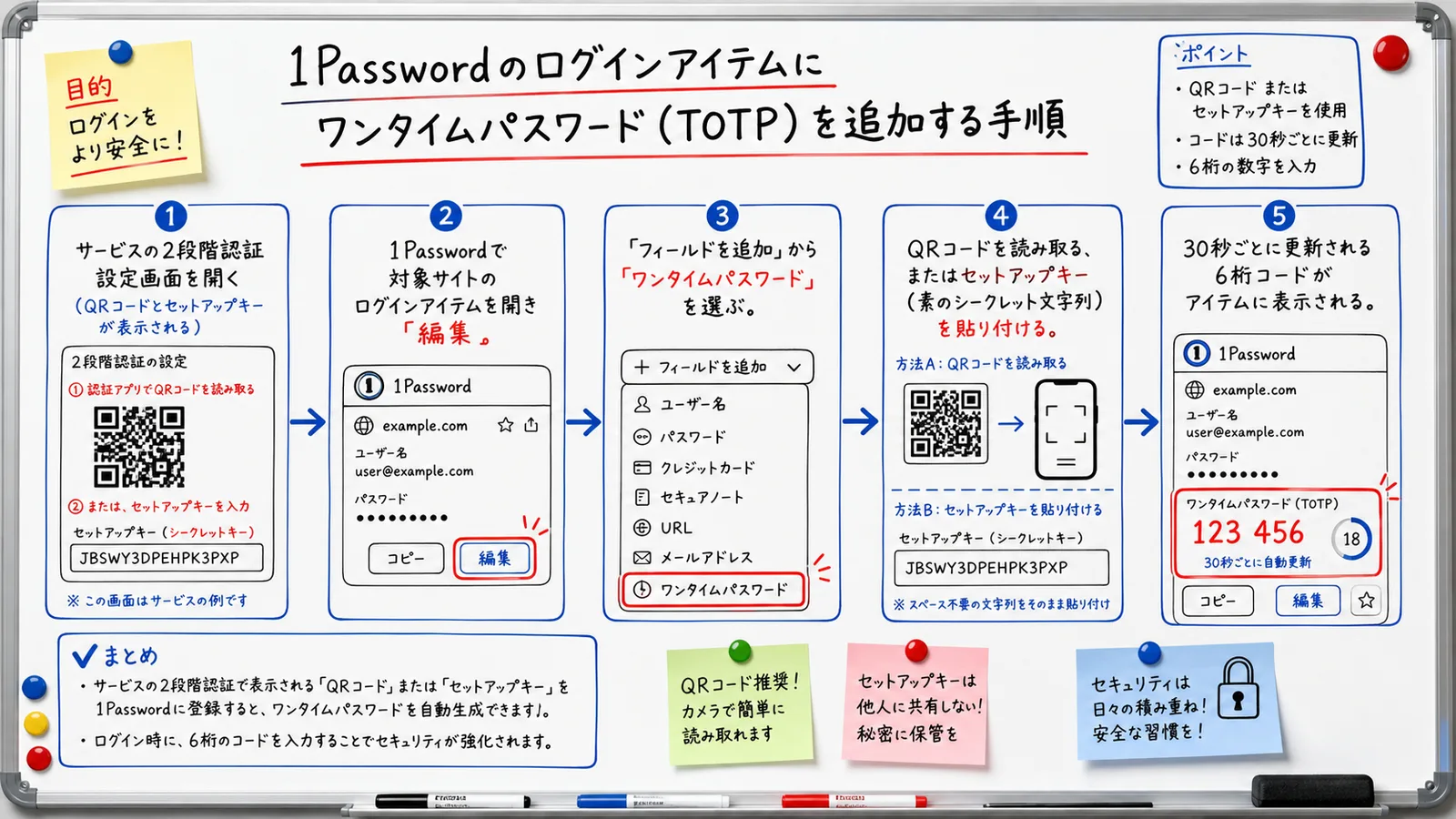
The core flow is adding a one-time password field to a login item you already store in 1Password. Here are the desktop app / browser extension steps in order2:
- Open the two-factor settings on the target service and choose the authenticator-app method.
- When the screen shows a QR code and setup key, leave that screen open.
- In 1Password, open the login item for that service and click Edit.
- Choose Add Field, then One-Time Password.
- Scan the QR code with your camera, or paste the setup key (the plain secret string the service shows); 1Password also accepts a full
otpauth://URI if you have one. - Save, and a code (typically six digits) that refreshes every 30 seconds appears inside the item.
The "setup key" a service shows for manual entry is a plain secret string like JBSWY3DPEHPK3PXP (Base32). The QR code, on the other hand, encodes an otpauth:// URI like the one below, which wraps that same secret. When the QR code won't scan, you can type the plain setup key or paste the full otpauth:// URI instead.
otpauth://totp/GitHub:you@example.com?secret=JBSWY3DPEHPK3PXP&issuer=GitHub&period=30
If the QR code won't scan, manually entering the setup key in step 5 produces the same result. Most services ignore any spaces in the displayed key, so pasting exactly as shown usually works. With the browser extension, 1Password automatically copies the one-time password to your clipboard at the login screen, so you just paste it into the code field. To register from a phone only, use the same steps from the item edit screen in the mobile app.
Two details are worth understanding before you move on. First, once the one-time password field is saved on an item, it syncs to every device signed in to your account, so the same code is available on your laptop and phone without registering twice.
Second, adding the field in 1Password is only half of the handshake: the service also has to finish enabling 2FA on its side, usually by asking you to type one generated code back to it. If you close the setup screen before confirming that code, the service may never turn 2FA on, and you will have a code generator pointing at an account that still accepts a password alone. Always complete the confirmation step, then test a real sign-in.
Quick-Reference Table When Codes Won't Match or Scan
Most snags fall into a few patterns. Here is a quick-reference table of common symptoms and fixes.
| Symptom | Likely cause | Fix |
|---|---|---|
| QR code won't scan | Screen too small / glare | Paste the setup key manually instead |
| Code is rejected as "wrong" | Device clock drift (TOTP is time-based) | Set OS date/time to "automatic," wait, retry |
| One-time password doesn't appear | Extension / app is outdated | Update to the latest version and reopen the item |
| No autofill at the login screen | Extension not signed in / linked | Sign in to the extension and confirm the site URL is on the item |
The most common issue is a "wrong code" caused by clock drift. Because TOTP computes codes from the device clock, being off by tens of seconds breaks authentication. Setting both phone and PC to automatic time sync is the reliable fix; on a server or a device you rarely reboot, force a network time sync before you blame the setup.
A close second is autofill silently not firing, which almost always traces back to the browser extension being signed out or the item missing the exact site URL, so 1Password never matches the page. Updating an outdated extension resolves a surprising share of "the code just won't appear" reports, because the one-time password UI moved across recent versions. Operational smoothness like this is part of deciding whether to consolidate your authenticator into 1Password.
Verify, Roll Back, and the Same-Vault Question
Once registered, sign in for real to confirm it works. If the six-digit code 1Password shows lets you sign in, setup succeeded.
Verify the Setup Worked
Sign out of the target service and try signing back in with your password and the one-time password. Many services ask you to enter a confirmation code during 2FA activation; entering the 1Password code there completes the process. Also record the "recovery codes (backup codes)" the service issues in a separate, safe place. Treat that verification sign-in as non-negotiable: it is the only moment you learn whether the secret was copied correctly while you still have easy access to the account. Verifying from a second device at the same time also confirms the field synced, so you are not depending on a single machine.
Roll Back or Redo
If you want to move back to a different authenticator or redo the registration, the safe path is to disable two-factor authentication in the service's 2FA settings and reissue a fresh QR code. Deleting only the one-time password field inside 1Password does not disable 2FA on the service itself.
The same logic answers a frequent question: can you migrate from Google Authenticator or Authy into 1Password? 1Password doesn't offer a one-click bulk import that copies existing TOTP secrets between apps, so the reliable route is per account. For each service, turn 2FA off, then re-enable it and scan the new QR code into 1Password.
Do this one service at a time and keep the old authenticator installed until every account is verified in its new home. That way, if a single migration goes wrong, you still have a working code source and the recovery codes you saved earlier as a backstop. Rushing all accounts at once is the fastest way to lock yourself out of the one service whose recovery codes you forgot to record.
Should You Keep Passwords and TOTP in the Same Vault?
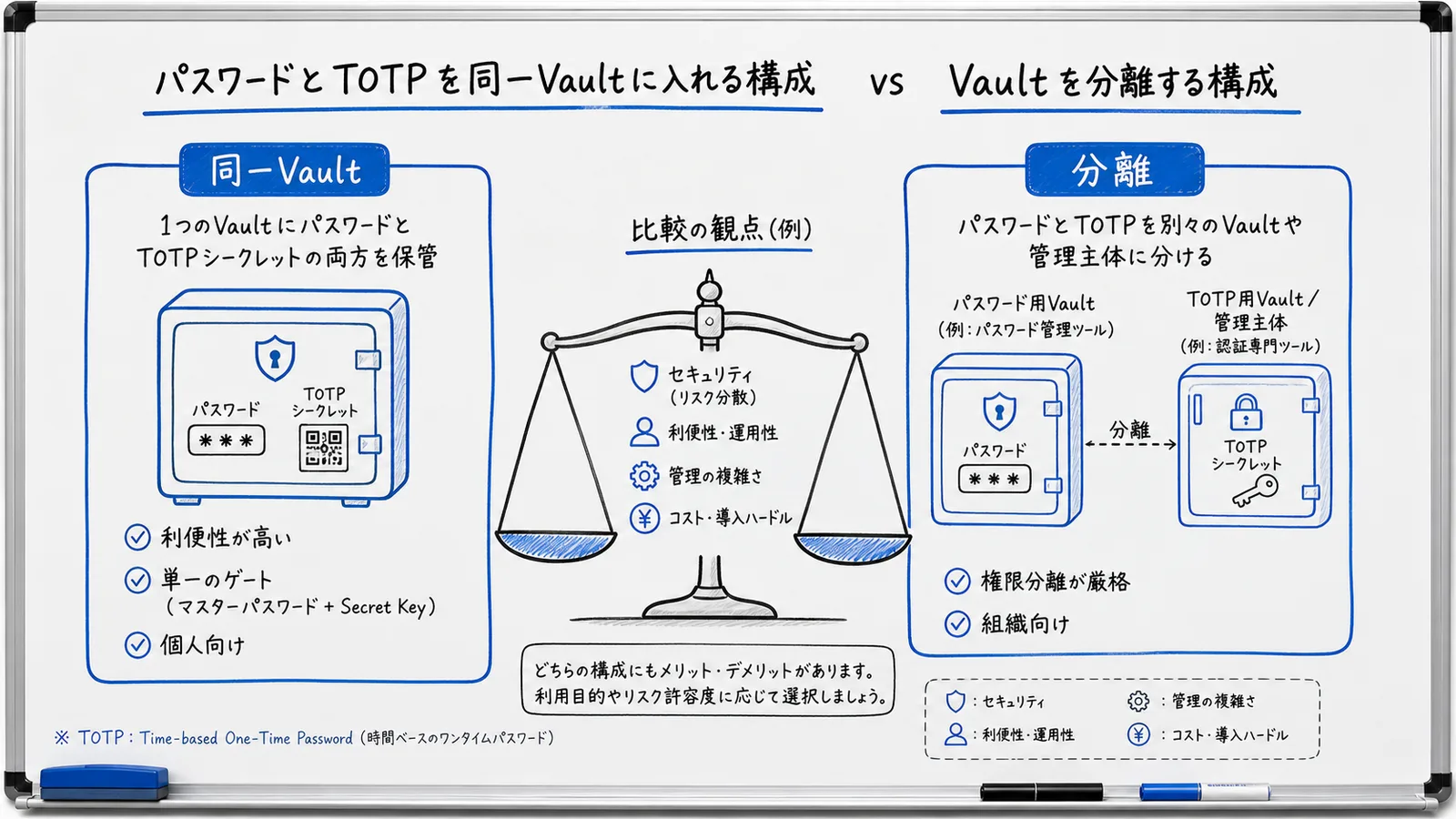
"If passwords and 2FA sit in the same 1Password, doesn't two-factor lose its meaning?" is a fair question. Strictly, when both live in one vault, your defense collapses to a single gate: "master password + Secret Key." That said, 1Password uses a two-layer design combining a master password with a Secret Key, so data cannot be reconstructed even if the server is breached.
The Secret Key never leaves your devices in a usable form, which is why a server-side breach yields ciphertext rather than a login. So the honest framing is not "one factor versus two" but "how strong is the single gate, and who can open it." For personal use, keeping them together for convenience is pragmatic, and it still beats reusing one memorized password everywhere.
For companies or setups that need strict access separation, splitting credentials and TOTP across vaults or owners is the recommended design, because it limits how much a single compromised account or over-broad share can unlock. A common middle ground is to co-locate for low-risk consumer logins while isolating high-value systems, so day-to-day convenience does not weaken the accounts that would hurt most if breached. For layered defense that includes phishing resistance, see our 1Password phishing defense and Watchtower guide.
Separately from storing other services' TOTP, you can also enable two-factor authentication on the 1Password account itself. For that, use a different authenticator app or a security key so you are not locked out of 1Password if something goes wrong3. In practice that means a hardware security key or a second authenticator you control, not the very vault you are trying to protect; otherwise a locked vault would take your account recovery down with it. The idea is to keep the vault-protection factor and the account-protection factor apart.
Summary: Setup Takes Minutes, Key Storage Is What Matters
Managing TOTP in 1Password starts with simply adding a QR code or setup key to an existing item. The mechanics take a few minutes; the durable part is the discipline around it. The key points are preventing code drift with time sync, completing the service-side confirmation so 2FA is actually on, and storing the setup key and recovery codes somewhere you can reach after losing a device. Everything else is convenience layered on top.
Keep a simple rule of thumb — convenience-first co-location for individuals, vault separation for teams that need it — and operations stay clear. If you are outfitting a team, decide the vault layout before you invite people, because moving TOTP items around later means re-registering codes account by account. If you are weighing shared-vault operations for a team or the licenses you need, review our 1Password Business cost guide alongside this article, then start with a single trial vault and expand once the workflow feels right.
Information current as of 2026-07-13. Please check the official sites for the latest updates.
This article contains affiliate links.
Footnotes
-
IETF RFC 6238, "TOTP: Time-Based One-Time Password Algorithm." https://datatracker.ietf.org/doc/html/rfc6238 ↩
-
1Password Support, "Use 1Password as an authenticator for sites with two-factor authentication." https://support.1password.com/one-time-passwords/ ↩
-
1Password Support, "Turn on two-factor authentication for your 1Password account." https://support.1password.com/two-factor-authentication/ ↩
Frequently asked questions
Related articles
1Password AI Phishing Defense 2026 — Passkeys + Watchtower
1Password Business Pricing 2026 — Cost Per Headcount and Teams Starter Pack Comparison