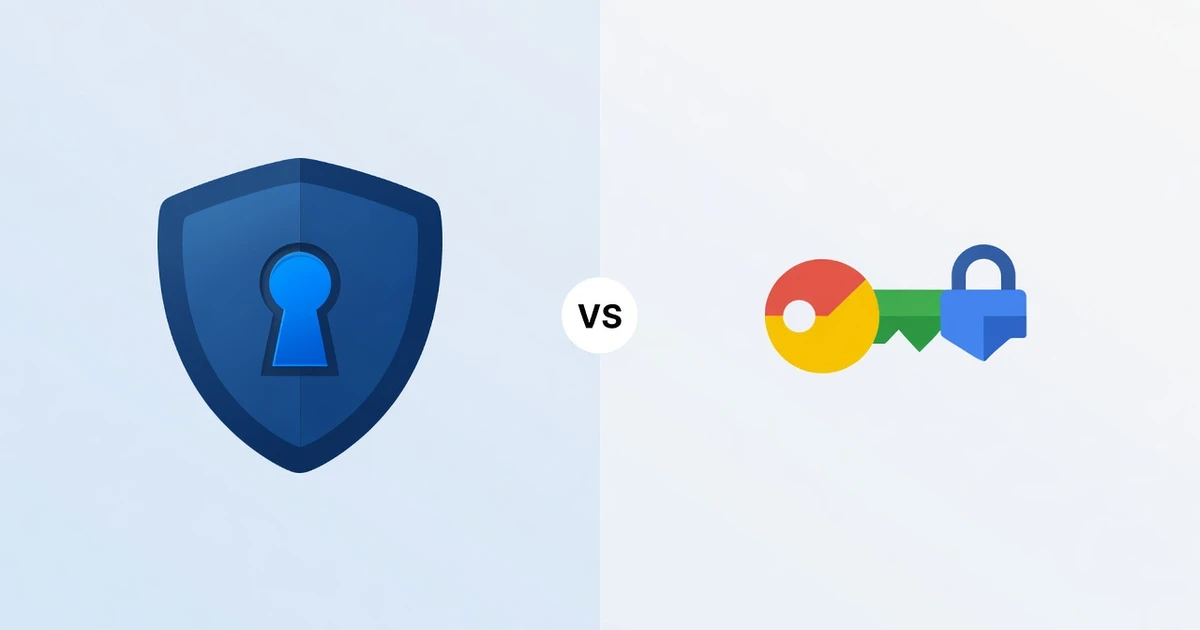
1Password vs Google Password Manager 2026: Which to Pick
1Password vs Google Password Manager in 2026: zero-knowledge security, pricing, sharing, and migration ease, with a case-by-case verdict on which to pick.
This article contains affiliate links (advertising).
"Is free Google Password Manager enough, or should I switch to 1Password?" is a question almost everyone weighs at some point. The short answer: if you live inside the Google ecosystem and prioritize convenience, free Google is fine; if you value security design, cross-platform coverage, and sharing with family or a team, 1Password is the stronger pick. This guide compares both with 2026 information and gives a case-by-case verdict on which to choose.
Where 1Password and Google Password Manager Stand in 2026
1Password is a dedicated password manager used by individuals through enterprises. It pairs AES-256 encryption with an account password plus a Secret Key (an extra key generated separately from your password) in a zero-knowledge design, meaning the server itself cannot decrypt your data1. Google Password Manager, by contrast, is built into Chrome and Android and comes free with your Google account2.
The two start from different places: a purpose-built tool versus something that melts into an ecosystem. Rather than pitting them head-to-head on every spec, it helps to anchor on that difference in direction first — the comparison gets much easier from there.
Google Password Manager is optimized to be invisible. It autofills inside Chrome and Android without you thinking about it, and because it rides on the account you already have, there is nothing extra to install, pay for, or remember. That is a real strength for people who rarely leave the Google world. 1Password takes the opposite stance: it is a product you actively adopt, with its own app, its own login model, and its own recovery story. The cost of that deliberateness is a small learning curve; the payoff is control over how your secrets are stored, shared, and audited. Keep that framing in mind as we go through each criterion — most of the "which is better?" debate is really a question of which philosophy fits how you work.
A Decision Table Across Six Criteria
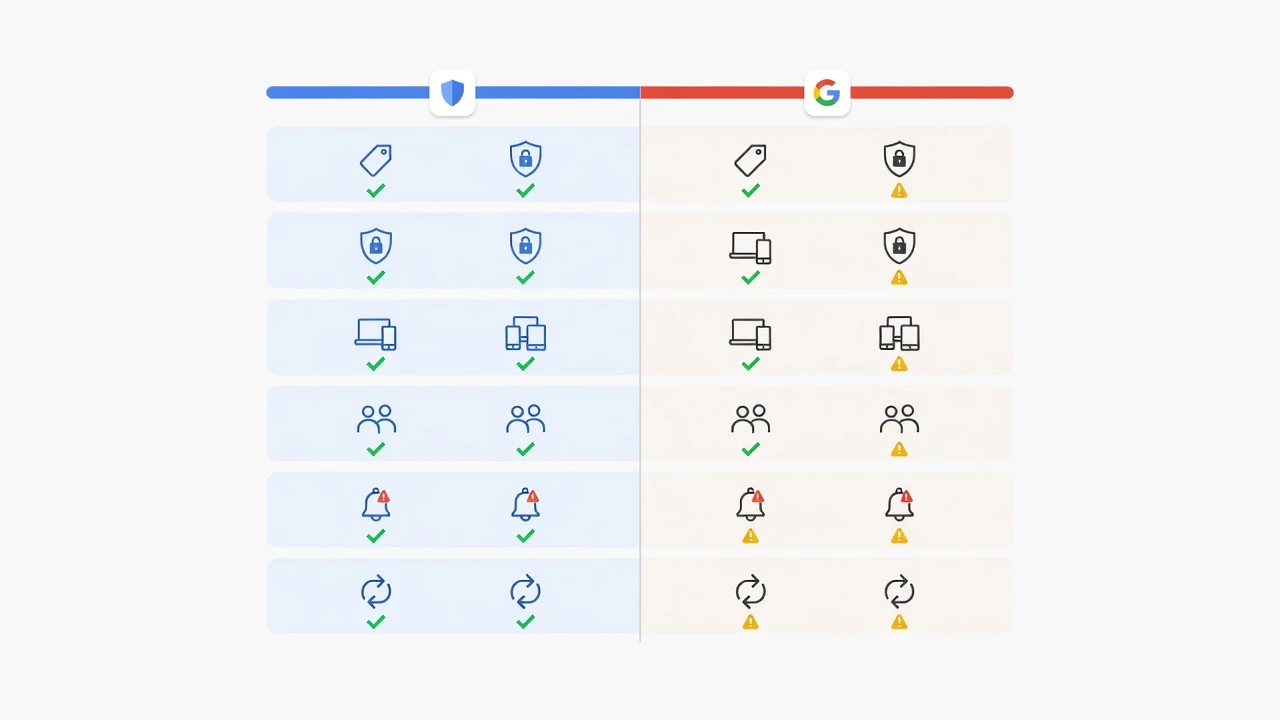
Here is the big picture. Because check marks alone are hard to act on, each cell includes a one-line reason. The six axes are pricing, security model, platform coverage, sharing, breach monitoring, and ease of switching312.
| Criterion | 1Password | Google Password Manager |
|---|---|---|
| Pricing | Paid. Individual $2.99/mo billed annually as a new-customer first-year promo (normally $3.99/mo); no free tier | Completely free, bundled with your Google account |
| Security model | Two-layer zero-knowledge (Secret Key + account password); safe even if the server is breached | Keys managed by Google by default for now; on-device encryption must be enabled manually |
| Platform coverage | Consistent quality across every OS and major browser (Win/Mac/Linux/iOS/Android/CLI) | Centered on Chrome/Android; limited on other browsers and iOS |
| Sharing | Vault-level permissions and secure sharing with expiry | Assumes the Google ecosystem; weak for secure external sharing |
| Breach monitoring | Watchtower flags breaches, weak, and unprotected items | Password Checkup covers breach checks |
| Ease of switching | Strong Chrome/Google import tooling | Supports password/passkey import/export, easing data portability |
The Security Model Difference (the Biggest Gap)
The largest difference is the security model. 1Password keeps a Secret Key on your device in addition to your account password, so even a leaked master password cannot decrypt server-side data by itself — a genuine two-layer design1. Google Password Manager, as of now, leaves on-device encryption off by default, so Google manages the decryption keys2.
That trades security for convenience: recovery and sync from another device are effortless, but if your Google account is taken over, your stored passwords go with it. Because the same account also gates email, cloud storage, and often your phone, a single point of compromise cascades further than most people expect. Browser-stored credentials are also a well-known target for infostealer malware and malicious extensions, which raises the stakes for anything kept inside the browser profile.
Enabling on-device encryption closes much of this gap by keeping the decryption key on your devices rather than with Google. The trade-off is that recovery becomes your responsibility: if you lose access to your devices without a recovery path, Google cannot restore the data for you. Most users never turn it on, so in practice the default posture is what matters. If your priority is "don't concentrate trust in a single account or provider," 1Password's independent-key design — where the Secret Key never leaves your devices in plaintext — has the edge by default, without any manual configuration.
Pricing and Platform Coverage
On price, Google is free and 1Password is paid. The 1Password individual plan starts at $2.99/mo billed annually (~¥450) as a new-customer first-year promo (normally $3.99/mo), Families is normally $5.99/mo for up to five people (or $4.49/mo on the new-customer first-year promo), and both include a 14-day free trial3. Team and Business plans are separate; for per-headcount cost planning, see our guide to choosing a 1Password Business plan.
When weighing price, resist reading "free" as "free of cost." Google's price tag is zero, but the implicit cost is ecosystem lock-in and the default key-custody model above. 1Password's few dollars a month buy cross-platform parity, breach monitoring, and secure sharing you would otherwise assemble from separate tools. The honest way to compare is per-value, not per-dollar: if you never use the paid features, Google is the better deal; if you would use even two or three of them weekly, the subscription usually pays for itself in saved time and reduced risk.
Platform coverage is where the gap shows. Google delivers its best experience on Chrome and Android but is limited on iOS and non-Chrome browsers, where autofill can be inconsistent and management is awkward. 1Password holds consistent quality across Windows, Mac, Linux, iOS, Android, browser extensions, and the CLI, so you keep the same experience across environments — the same vault, the same shortcuts, the same autofill behavior. The more you move between operating systems and browsers, the more that difference matters, and mixed households (an Android phone here, a MacBook there, a work Windows laptop) feel it most.
Case-by-Case Winners — Which One Is Yours?
When there are too many criteria, the fastest path is to map them onto your situation instead of scoring every feature. Most people fit cleanly into one of the patterns below, and the deciding factor is usually how many platforms you touch and how much you share. Here is a clear call per reader pattern.
- Chrome/Android only, personal use, free matters most → Google is enough — just enable on-device encryption
- iPhone or multiple browsers, moving across environments → 1Password; parity across every OS pays off
- Sharing with family or a team → 1Password; vault-level permissions and expiring shares are safer
- Want to store more than passwords (cards, SSH keys, documents) → 1Password; the breadth of stored item types is different
- Security and privacy first, avoiding Big Tech dependence → 1Password; the Secret Key design is robust
Given those patterns, 1Password is the safe choice for anyone who values multi-device use and security design. Conversely, if you can accept "Chrome only, free is enough," there is no need to force a switch.
"Keep credentials in a dedicated manager instead of hanging everything off one Google account — it separates your risk." (paraphrase of a widely shared security take)
Framing the security difference as "avoid concentrating everything in a single account" makes the case for a dedicated tool easy to grasp.
Who 1Password Is (and Isn't) For
Who It Fits
- People who span multiple platforms: consistent quality on Windows, Mac, Linux, iOS, Android, and every browser
- Families and teams that share: vault-level permissions and secure sharing with expiry and view limits
- People who store more than passwords: cards, SSH keys, licenses, secure notes, and documents in one place
- Security-conscious users: two-layer zero-knowledge via the Secret Key, plus Watchtower breach monitoring
For passkey (FIDO2/WebAuthn) storage and sync operations, see our 1Password passkeys guide. The polish of a purpose-built tool adds up over a year of daily logins to a non-trivial time savings (even 3 sites × 30 seconds a day is roughly 9 hours a year).
Who It Isn't For (and Alternatives)
- People who only use Chrome/Android and want it free: Google Password Manager is enough — just turn on on-device encryption
- People who refuse to pay anything: paid-by-design 1Password is a poor fit. For free or low-cost options, consider Google, or the open-source, budget-friendly Bitwarden and Proton Pass
- People on a single device who never share: the extra features of a dedicated tool tend to go unused
It is worth being honest about the alternatives rather than treating this as a binary. Bitwarden is the strongest free-and-open-source option and covers most platforms well, so it appeals to people who want cross-platform coverage without a subscription. Proton Pass leans on a privacy-first brand and bundles with Proton's wider suite. Neither is "1Password but free" — they involve their own trade-offs in polish, sharing, and enterprise features — but if the blocker is purely budget, they are more capable than staying on browser-stored passwords. The point of listing them is simple: choosing not to pay for 1Password should still mean choosing a dedicated manager, not defaulting to whatever the browser offers.
In short: prioritize "free and frictionless" and Google wins; value "polish and security design" and 1Password wins.
"If you actually care about security, move off browser-stored passwords to a dedicated manager." (paraphrase of a security researcher's advice)
How to Switch From Google to 1Password (2026 Edition)
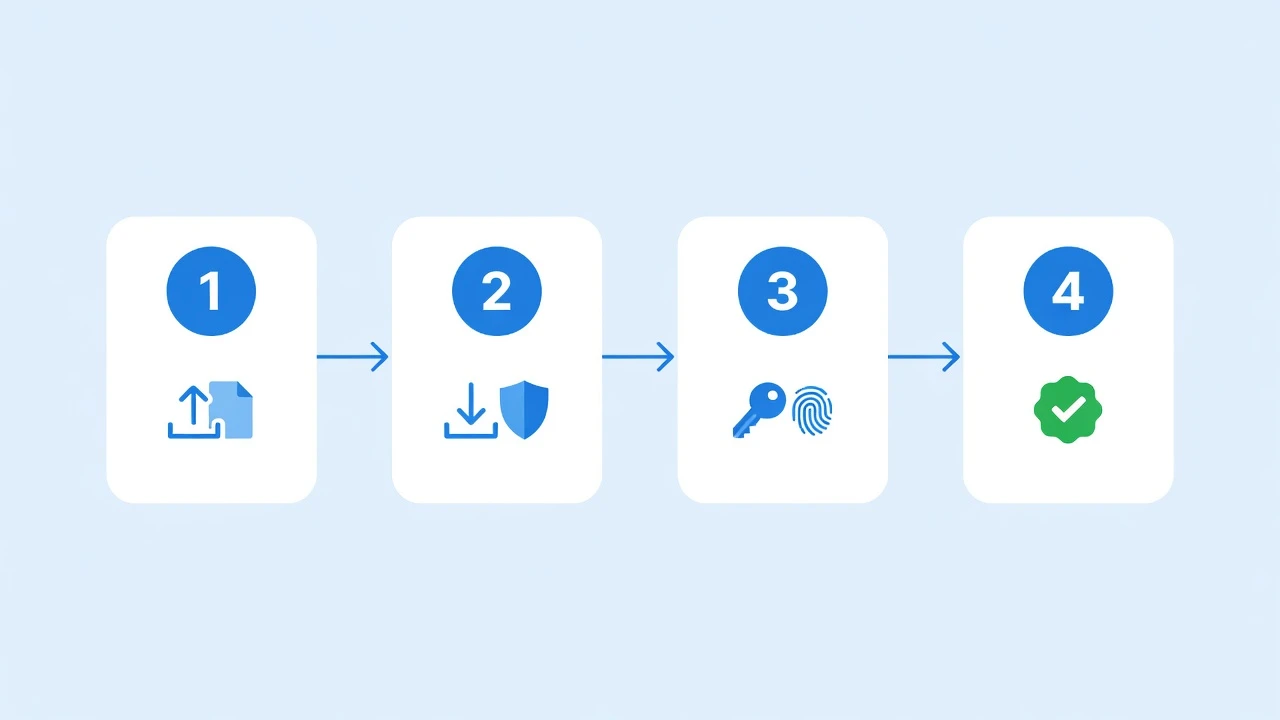
The fear that "migration looks painful" has eased a lot in 2026, because Google now supports third-party import/export for passwords and passkeys. Here is the flow.
- Export a backup from Google first (a CSV from passwords.google.com, or the newer export feature)
- In 1Password, choose Import → Chrome/Google and load the file4
- Passkeys now migrate smoothly across platforms thanks to the FIDO Alliance credential-exchange spec5
- After migrating, verify your most important logins, then clean up the copies stored in Google
Migrations of 1,000+ items are common and rarely get stuck in practice. For the concrete browser-side steps, see how to move Chrome passwords to 1Password. Run both tools in parallel before you commit, and manually verify a handful of critical passwords.
A few snags are worth planning for. Two-factor (TOTP) codes do not always carry over cleanly, because some services do not let you re-export the underlying seed — expect to re-enroll a few of those manually. Occasional character-encoding quirks can appear in exported CSVs, so spot-check any entries with symbols or non-Latin text. And once you have confirmed everything imported correctly, delete the exported CSV rather than leaving a plaintext copy of every password sitting in your Downloads folder. None of these are blockers; they are just the kind of details that turn a smooth migration into a stressful one if you skip them.
There is also plenty to ease the anxiety of switching. 1Password offers a 14-day free trial, and if it does not fit, you can export your data and roll back — so lock-in risk is low.
"Now that Google is rolling out password and passkey export, switching to another manager is much easier." (paraphrase of a widely shared migration note)
Bottom Line — Which to Choose
To recap: if free and frictionless matters most and you live in Chrome/Android, Google Password Manager is enough; if you value cross-platform coverage, sharing, and security design, 1Password is the stronger pick. If you take security seriously, the two-layer zero-knowledge Secret Key and Watchtower monitoring are reason enough to switch.
If you are evaluating a team rollout, plan per-headcount cost with our guide to choosing a 1Password Business plan before you commit. For personal use, start with the 14-day free trial, confirm it helps your workflow, and if it does not, export your data and roll back — a low-risk, two-step way to decide.
One last framing to make the choice easy: you are not locked into this decision. Both tools support export, and the 2026 import/export improvements cut in both directions, so trying 1Password does not trap your data. Give it two weeks of real use across the devices you actually own, watch how autofill and sharing feel day to day, and let that experience — not a spec sheet — settle the question. If Google already covers everything you need and you have enabled on-device encryption, staying put is a perfectly reasonable answer.
Information current as of 2026-07-05. Please check the official sites for the latest updates (https://1password.com/pricing).
This article contains affiliate links.
Footnotes
-
1Password Security Design (white paper): https://1passwordstatic.com/files/security/1password-white-paper.pdf ↩ ↩2 ↩3
-
Google Account Help (Password Manager): https://support.google.com/accounts ↩ ↩2 ↩3
-
1Password official pricing: https://1password.com/jp/pricing ↩ ↩2
-
1Password Support (importing from other tools): https://support.1password.com/ ↩
-
FIDO Alliance (passkeys / credential exchange spec): https://fidoalliance.org/ ↩
Frequently asked questions
Related articles
Move Chrome Passwords to 1Password: A 2026 Migration Guide

1Password Passkeys 2026: FIDO2/WebAuthn Storage, Sync, and Ops